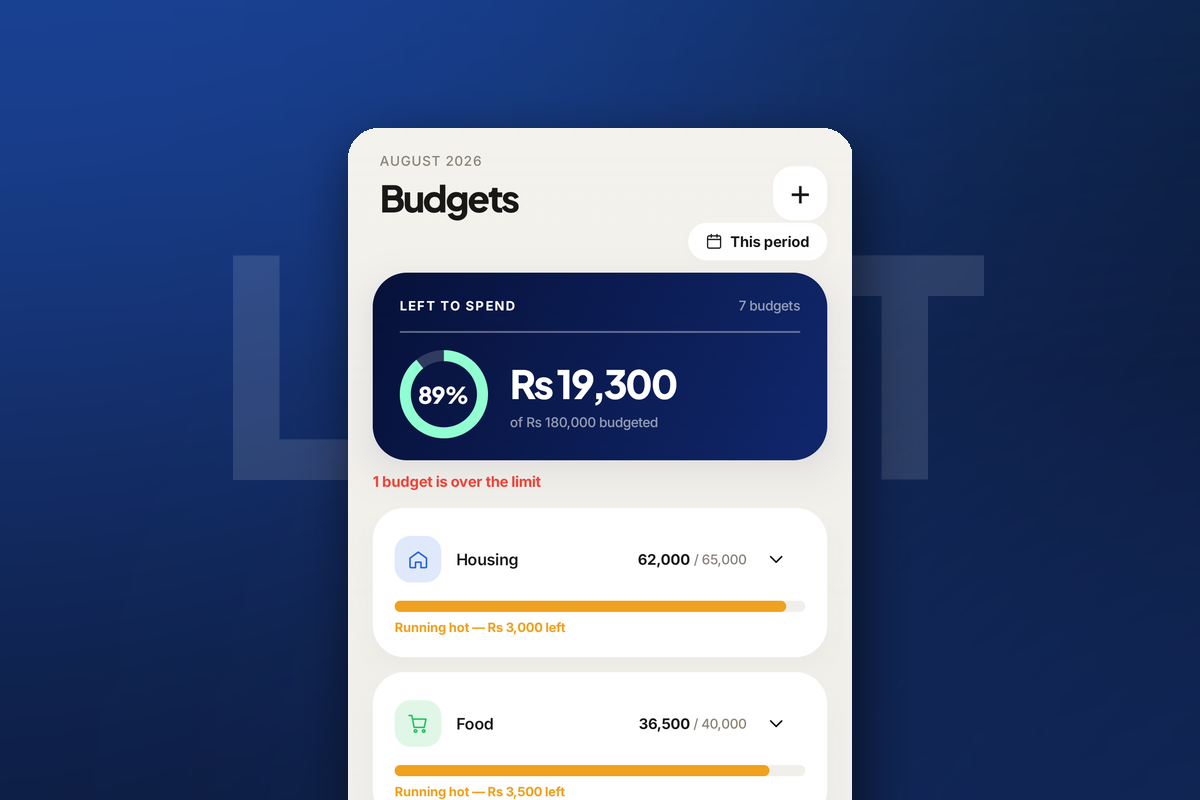
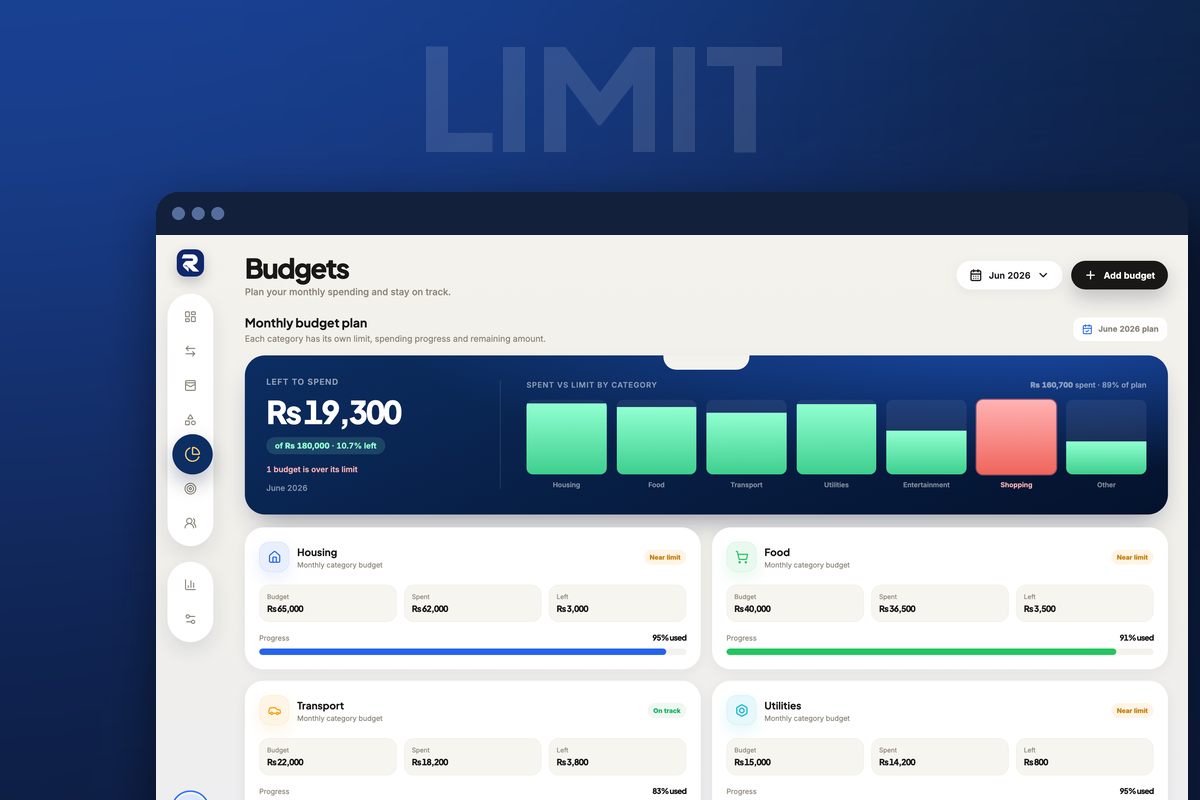
A budget in Rakama is one number attached to one category, and it turns a vague intention into something the app can measure you against. This walks through creating one, field by field, and then through reading the progress it produces.
Create a budget
Five steps, and the only one that needs real thought is the last. Everything before it is telling Rakama what the budget is about.
Open the Budgets screen
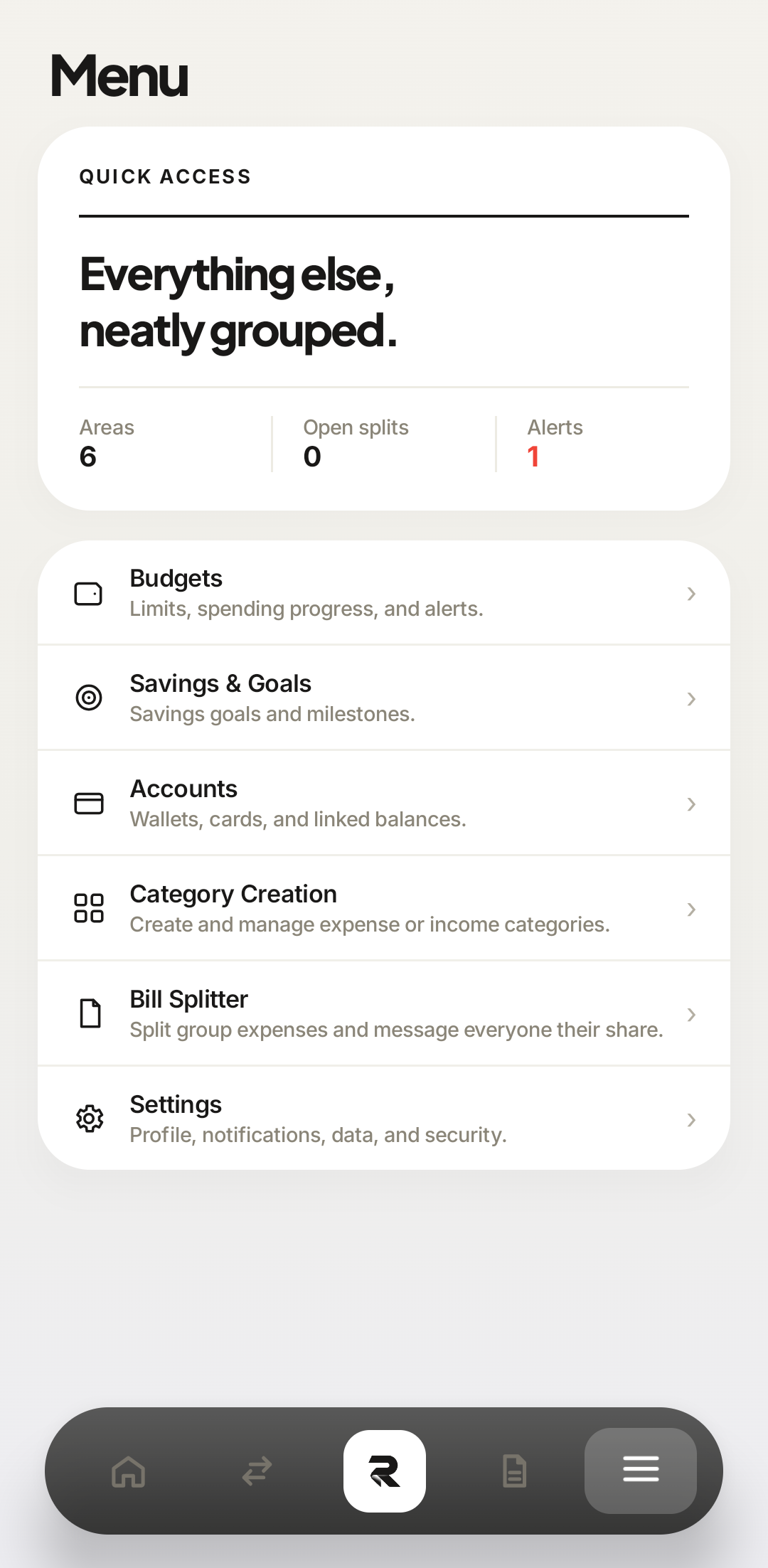
Budgets is not on the bottom bar. Tap the ☰ tile at the right end of the navigation bar to open Menu, then Budgets — the first row, described as “Limits, spending progress, and alerts”.
Savings & Goals, Accounts, Category Creation, Bill Splitter and Settings all live behind the same tile. It is worth learning once.
Click the pie-chart icon in the left sidebar — fifth from the top. The Budgets screen opens on the current month.
 1Budgets2
Everything that is not Overview, Transactions or Reports lives behind the ☰ tile. 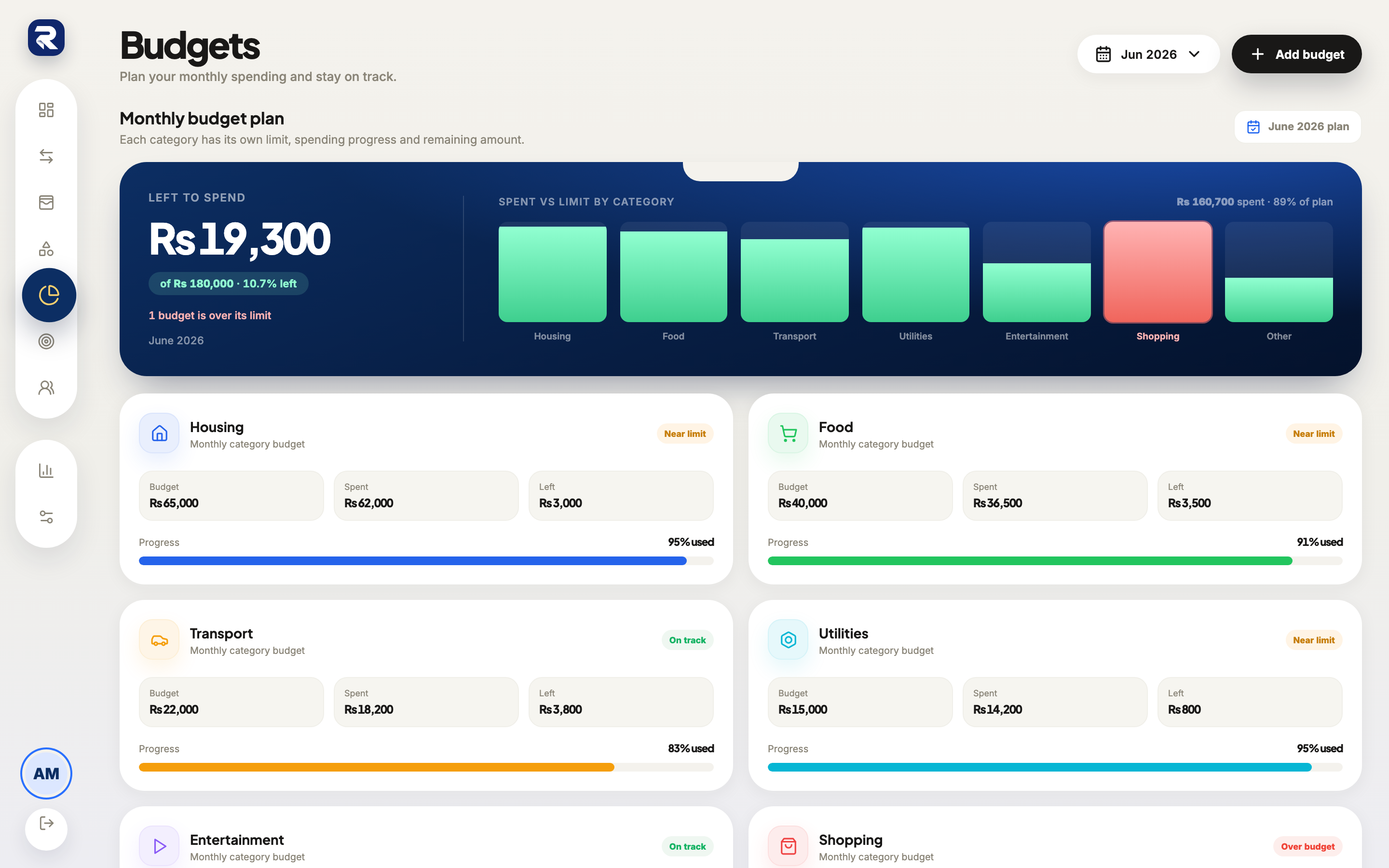 Budgets
The sidebar icon is the pie chart; it stays lit while you are on the screen. Start a new budget
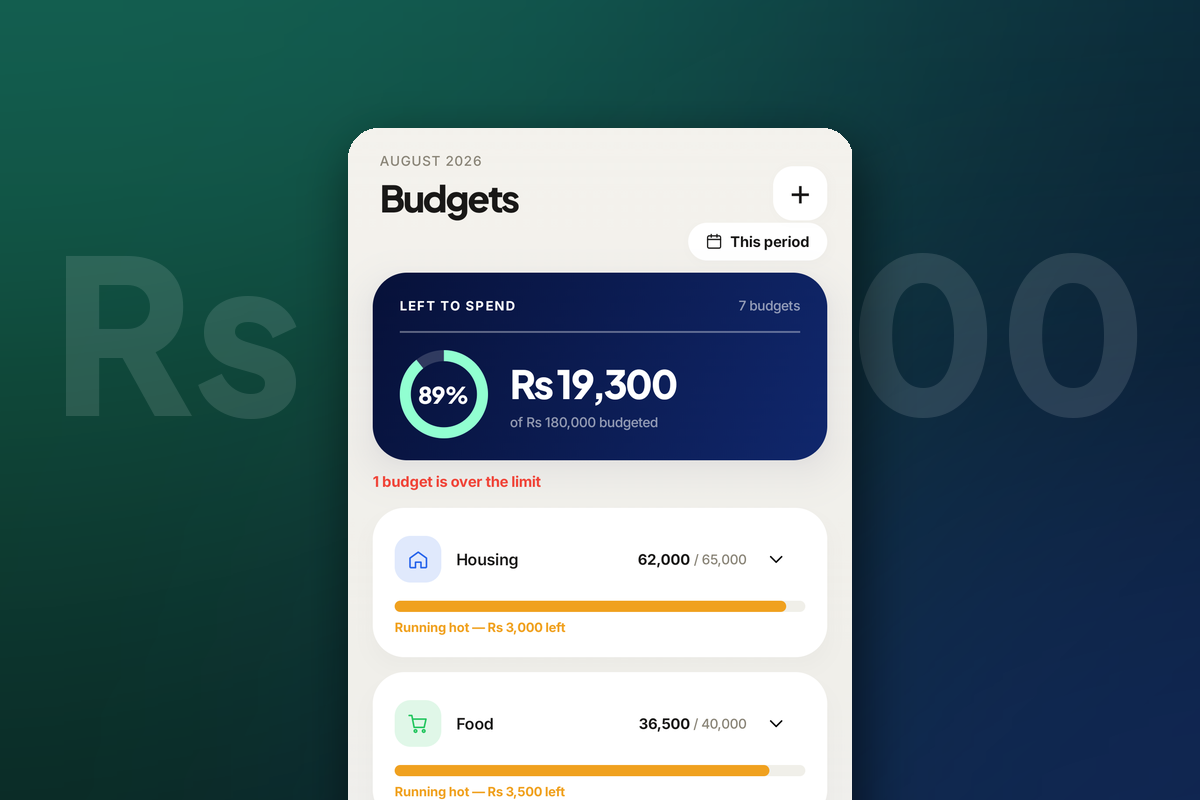
Tap the + in the top-right corner, above the period pill. The new budget form opens over the list.
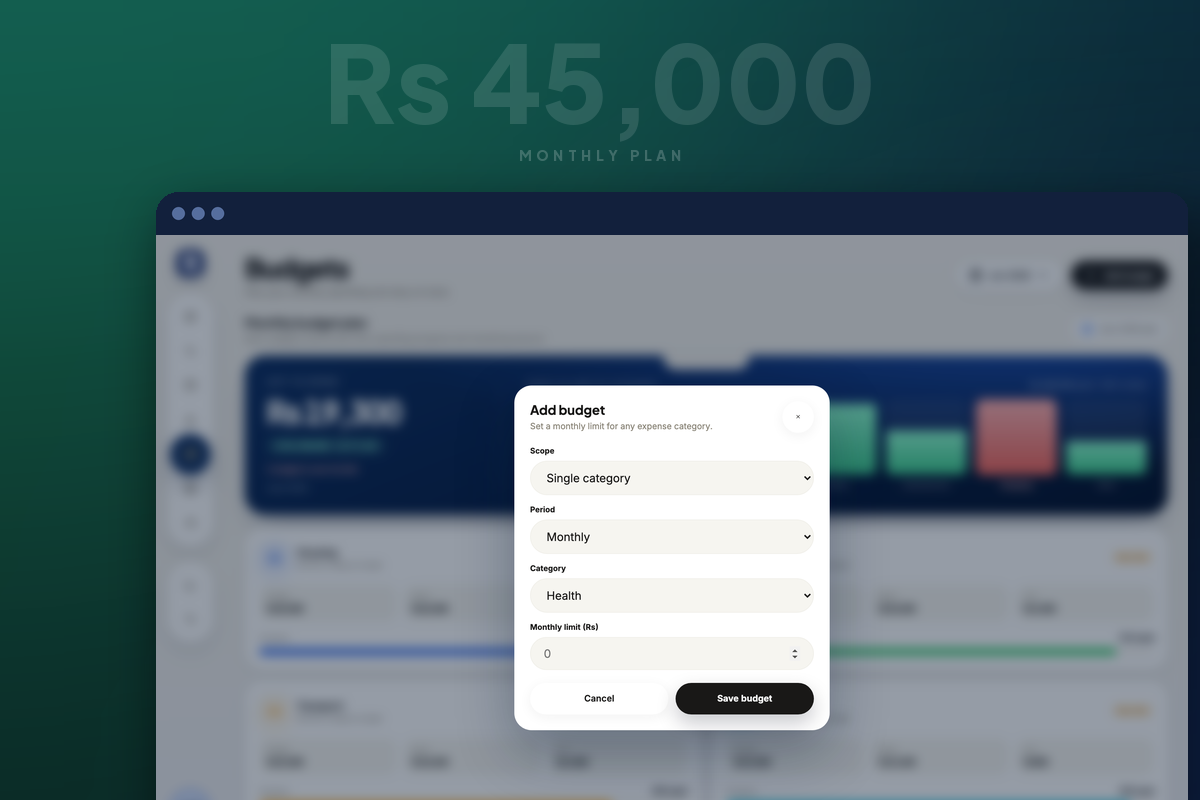
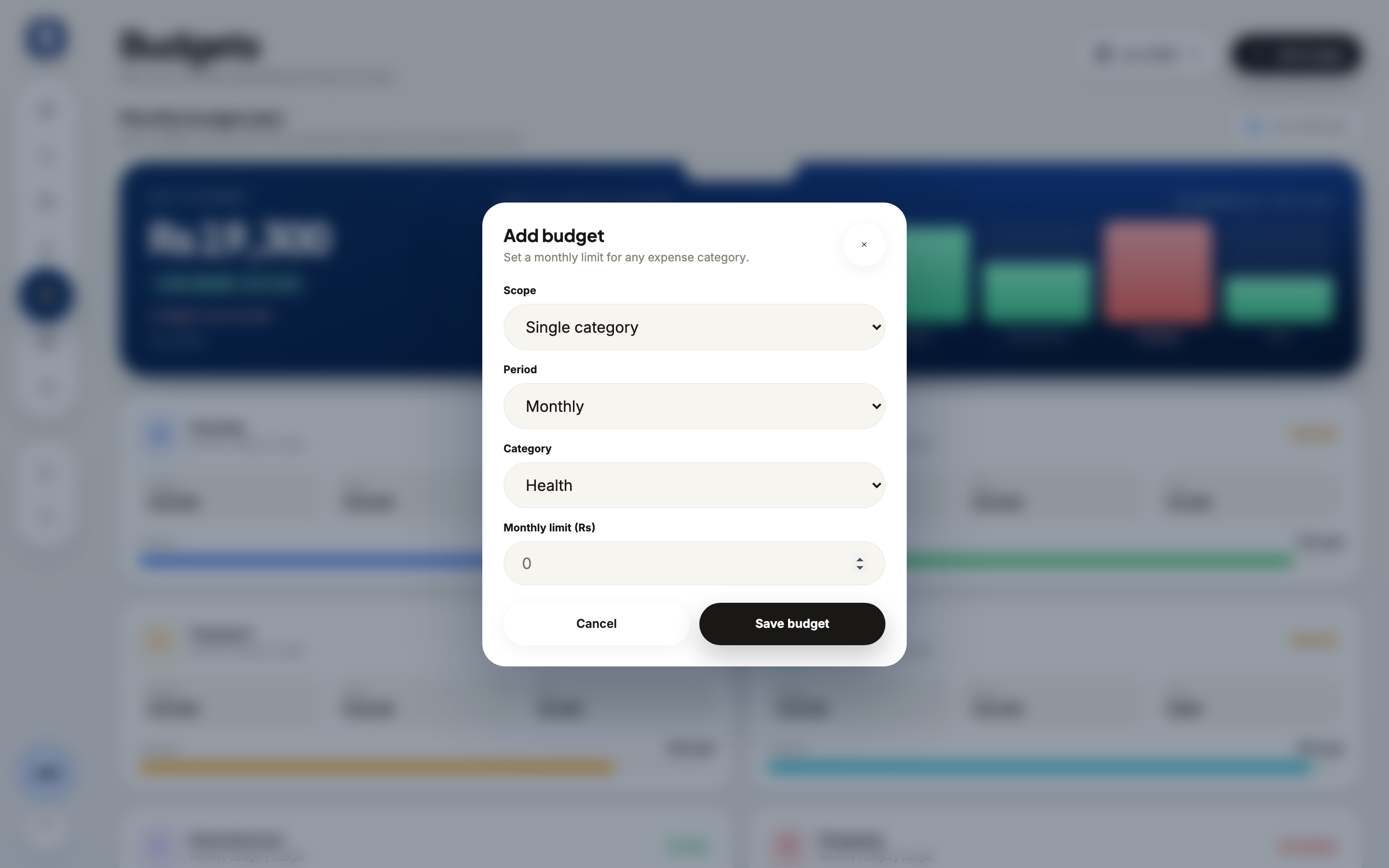
Click the black Add budget button in the top-right corner. The form opens as a dialog titled Add budget — set a monthly limit for any expense category.
 12Period
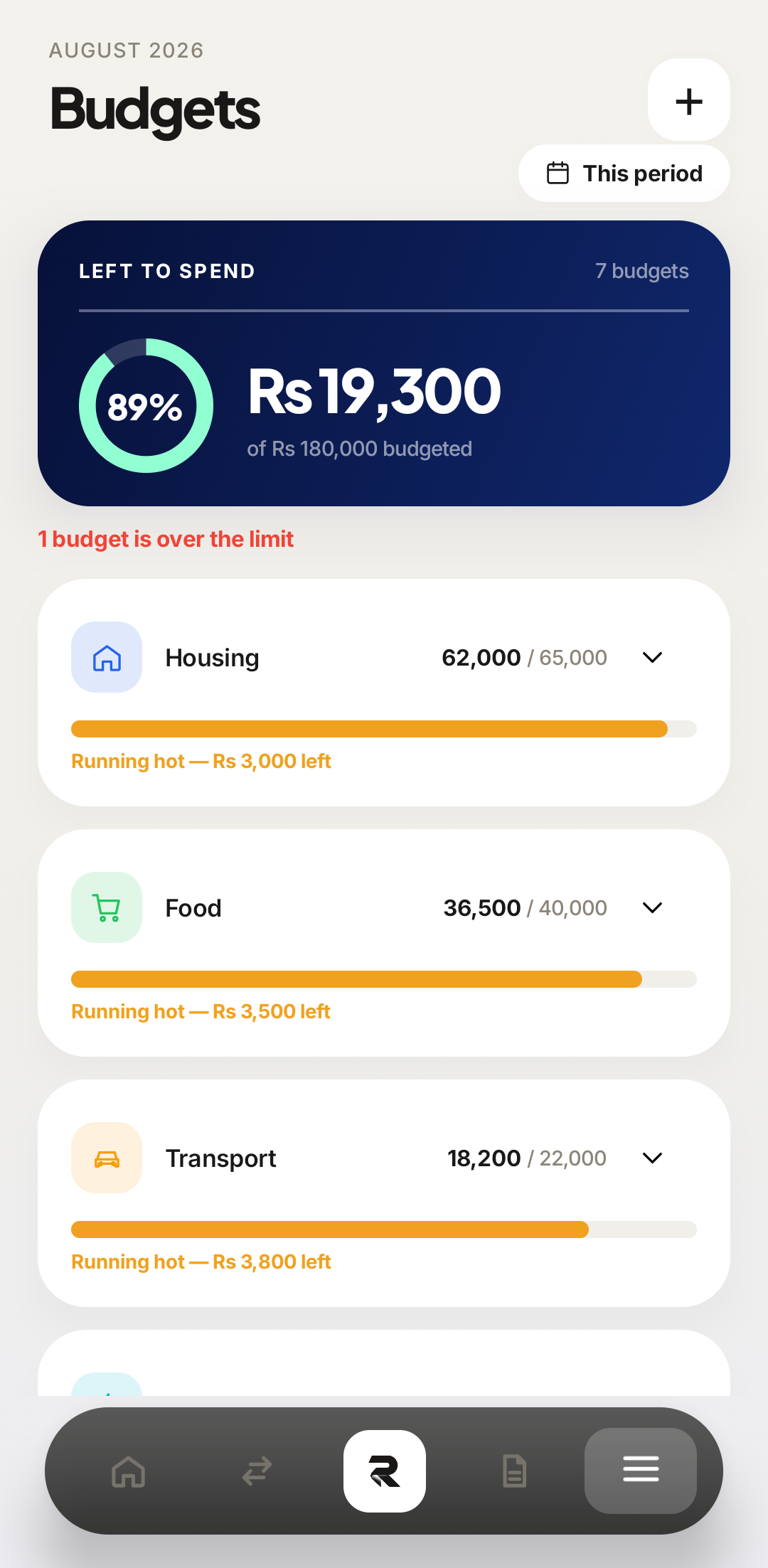
The + sits above the period pill; Left to spend summarises every budget below it. 1Add budget2Add budget is beside the month picker — the picker changes which month you are looking at, not which month the budget applies to. Choose what the budget covers
A budget is attached to one category, and that category is what Rakama compares your spending against. Pick the one where the money is actually escaping — the point of a food budget is that you can change what you spend on food.
Scope comes first: Single category is the default and what most budgets should be. The alternative covers your total spending, which is useful when you care about the ceiling rather than where the money went.
Then pick from the Category dropdown. Only expense categories appear — you cannot budget income.
Pick the category from the list in the form. Only expense categories appear — you cannot budget income.
 1Scope2Category
Scope first, then the category it applies to. Health is preselected only because it is the first category without a budget. 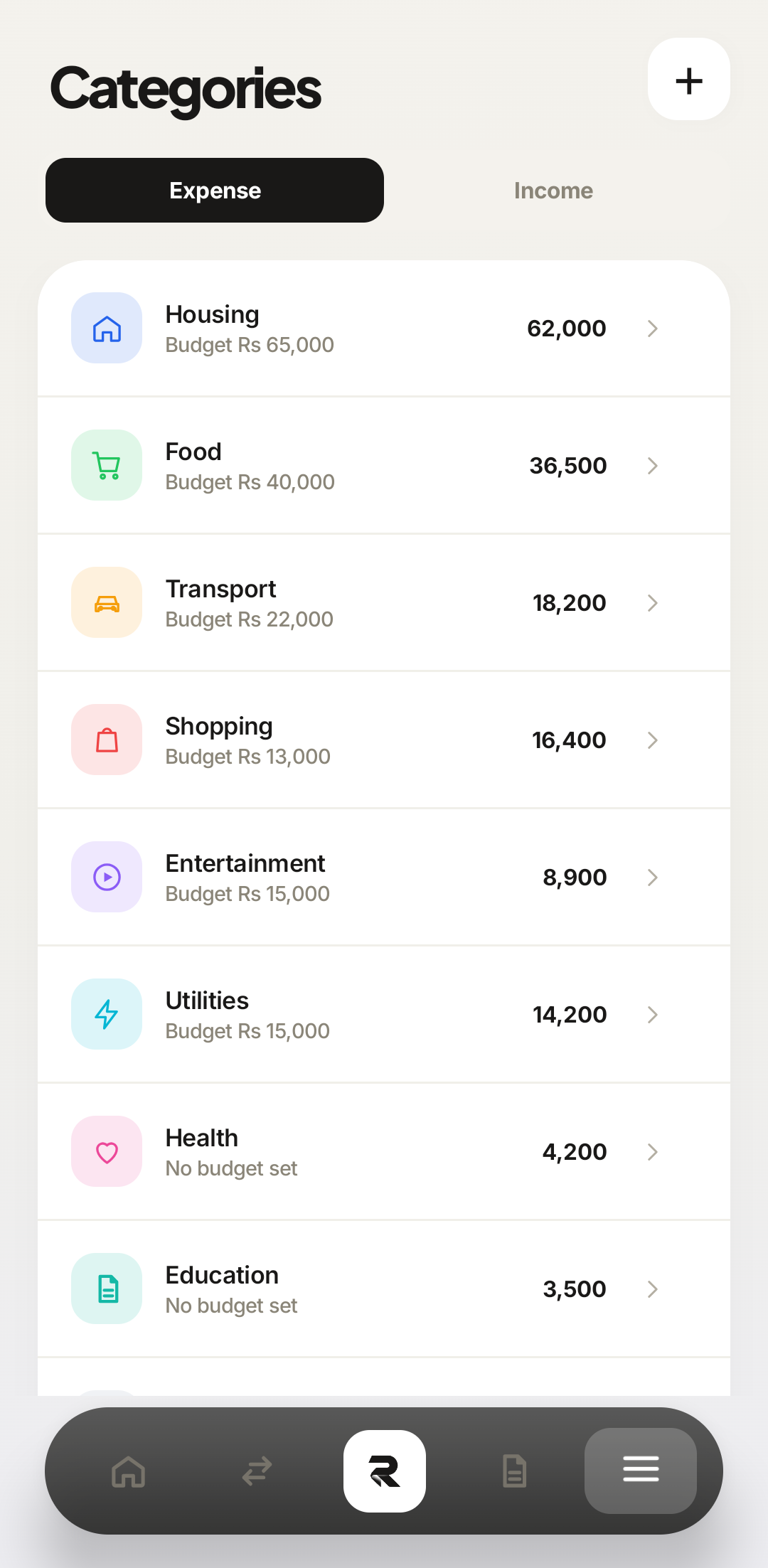 Category
If the category you want does not exist yet, create it first — Menu → Category Creation. A budget cannot conjure one. Set the period
Monthly is right for almost everything, because that is the rhythm your salary and your bills already run on. A monthly budget resets on the first of the month with the same limit — unspent money does not roll forward.
PeriodPeriod sits between Scope and Category, because it changes what the limit means before you type it. This periodThe period pill at the top of the Budgets screen shows which window the progress bars are measuring. Enter the limit and save
This is the number the whole budget hangs on, and inventing it is the most common way to end up with a budget you ignore. Open Reports first, look at what that category actually cost you over the last three months, and set the limit slightly under the average. A limit 10% below your real spending is a target; a limit 50% below it is a fantasy you will be over by the 8th.
Type the figure into Monthly limit (Rs) — digits only — then click Save budget.
Type the figure — digits only — then save.
1Monthly limit2Digits only. The Rs is part of the label, not something you type. New budgetSaved budgets appear in this list immediately, already showing this period's spending against the new limit.
The new budget appears in the list with a progress bar already filled in — Rakama applies the limit to spending you have already recorded this period, so a budget created on the 20th is not starting from zero. On the phone, the Left to spendcard at the top now counts one more budget. If the bar is empty, the category has had no transactions this period, which is worth checking before you trust the limit.
Reading budget progress
The Budgets screen is three things stacked: a total, a warning line, and one row per category. The total is the one to read first — it answers “can I spend anything?” before the categories answer “on what?”
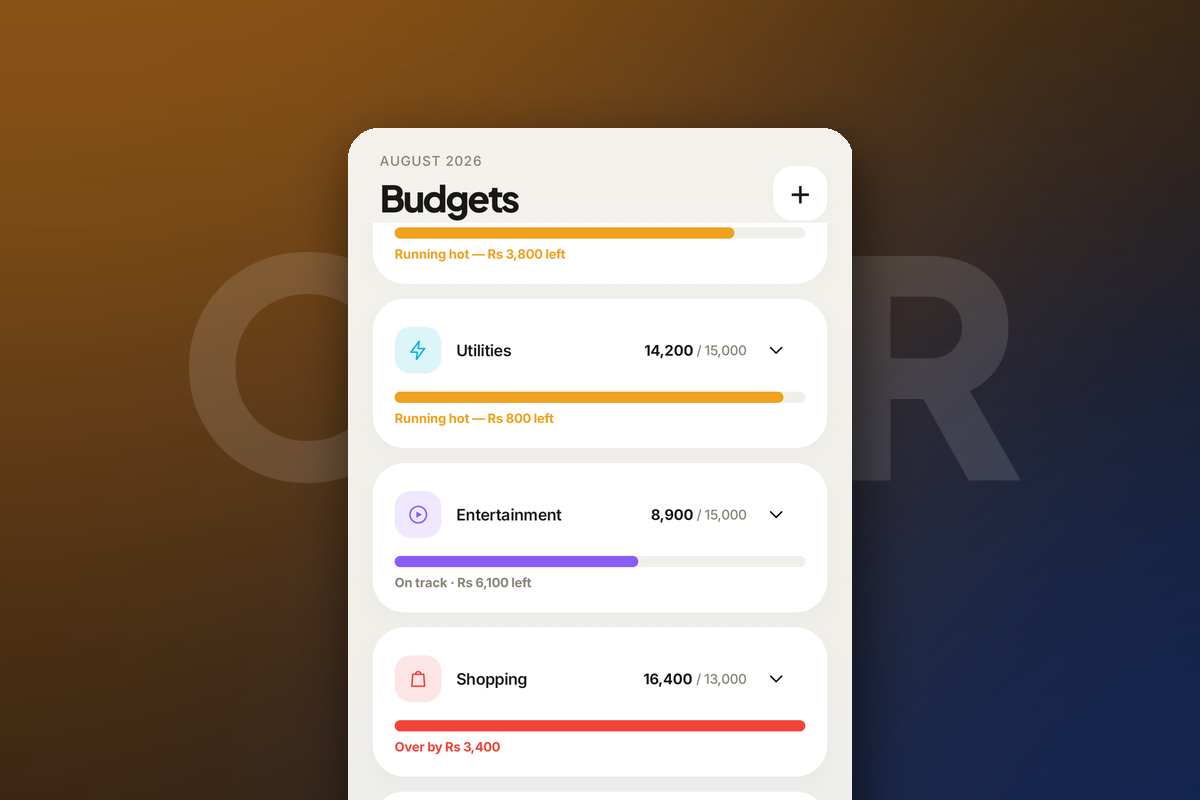
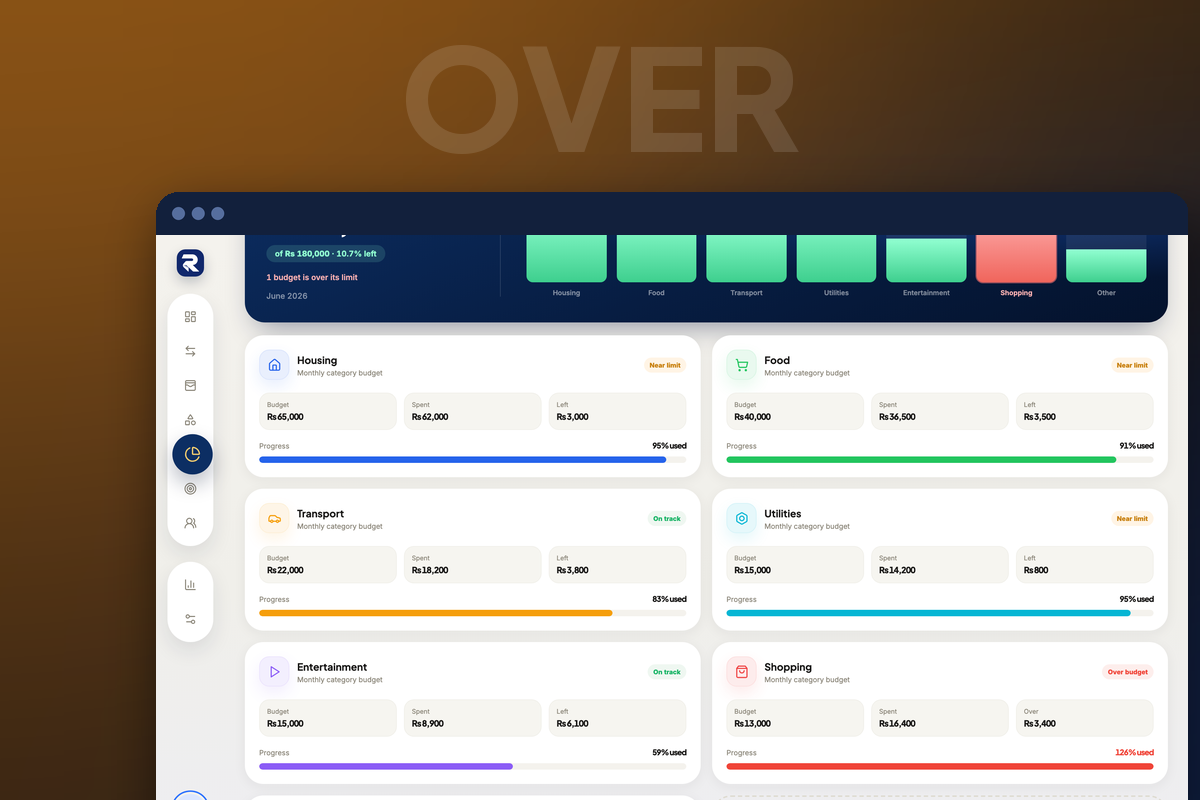
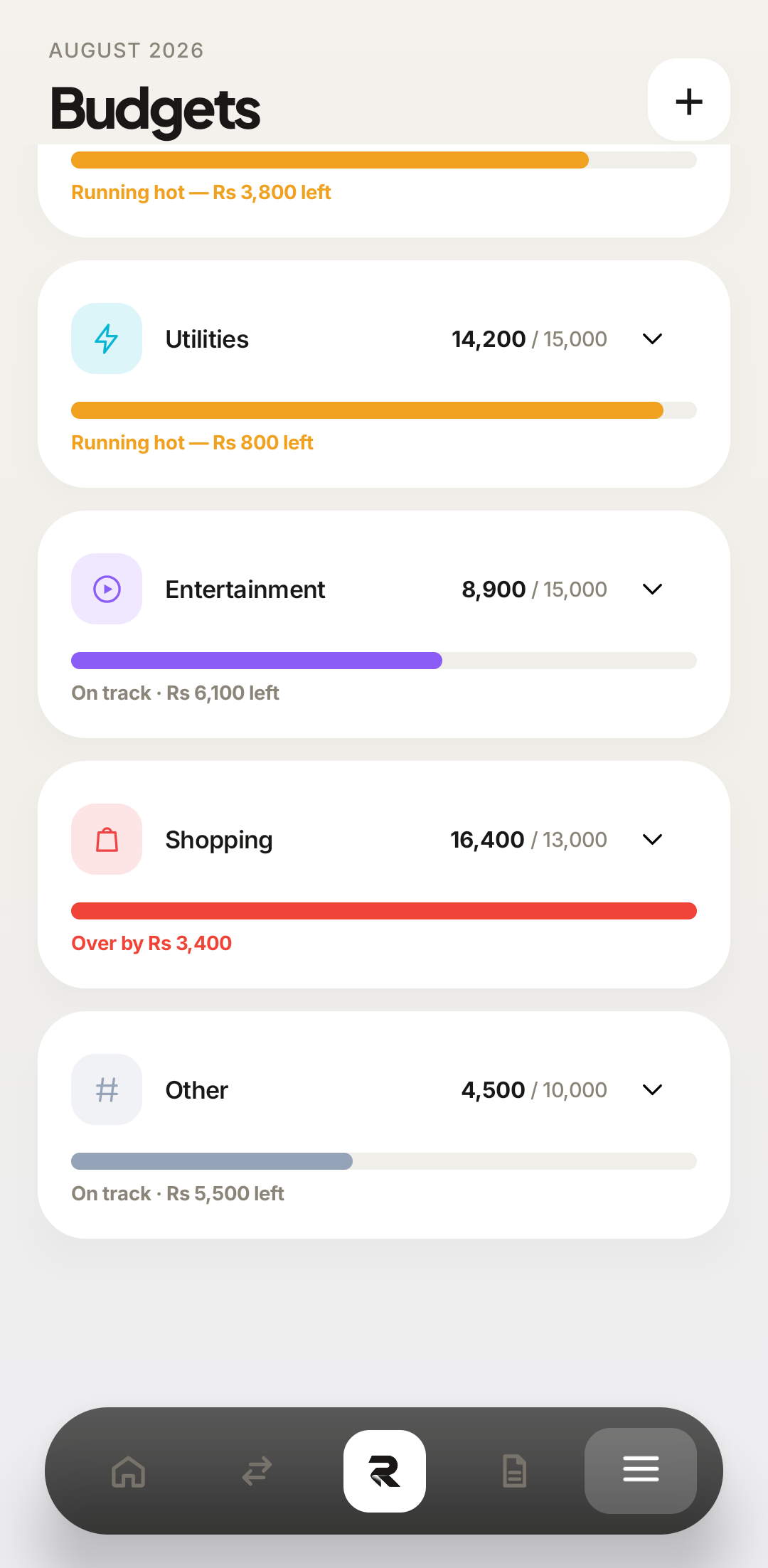
1Left to spend231One budget2Each row carries a status word, and the words are load-bearing. On trackmeans the pace is fine. Running hot — or Near limit on the web — means you will break it if nothing changes. Over budget means it is already broken and the row tells you by how much.
When you are over budget
Nothing is blocked. Rakama keeps recording the spending, turns the bar red, and tells you the overage. Tap or expand the category to see which transactions did it — that is almost always more useful than the total, because one Rs 9,000 outlier and thirty Rs 300 habits call for completely different responses.
 12Over by
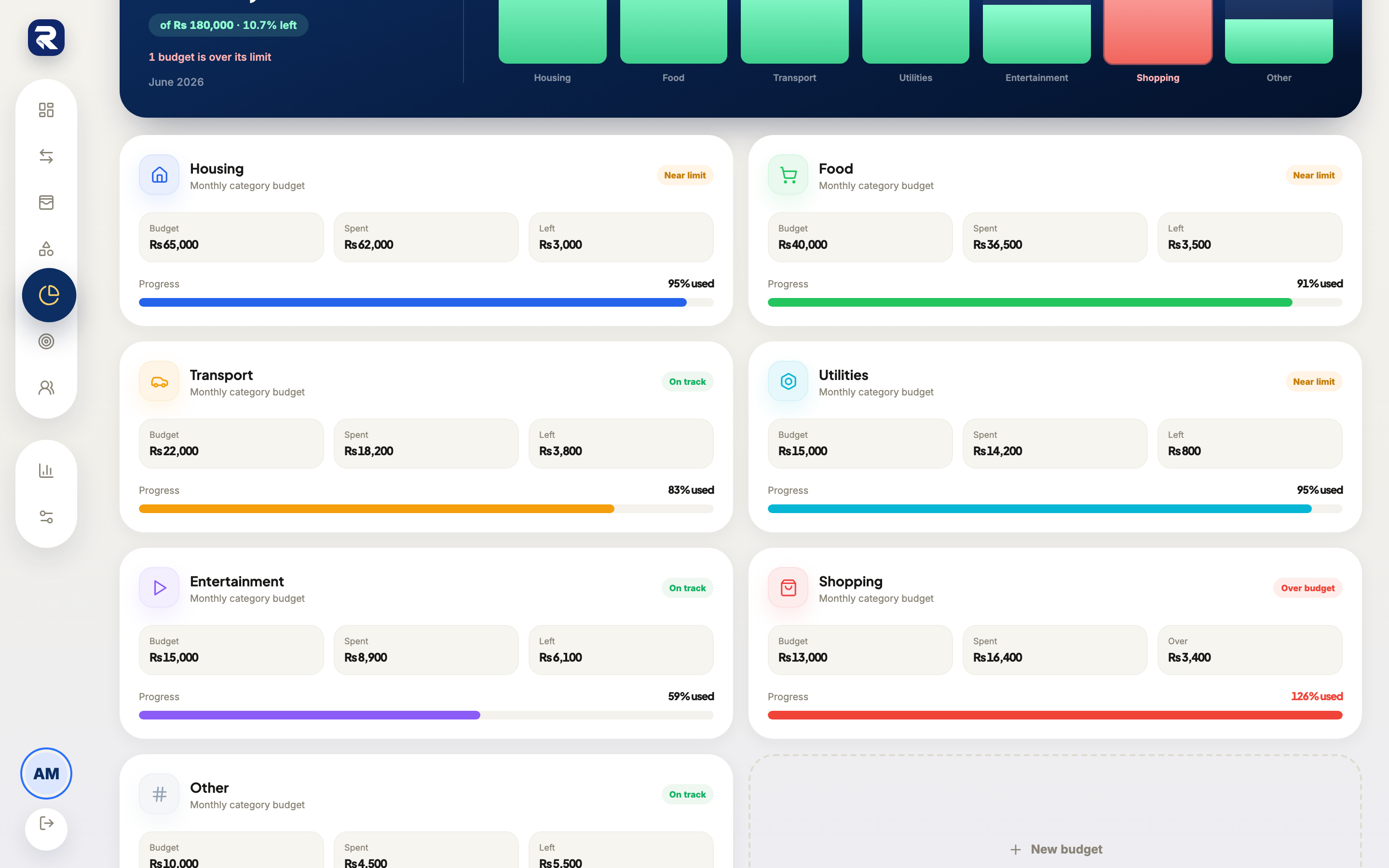 12Over
Frequently asked questions
How many budgets should I create?
Start with the three or four categories where your spending actually varies — food, transport, shopping. Fixed costs like rent rarely need a budget, because a limit on a number you cannot change tells you nothing.
What happens when I go over a budget limit?
Rakama keeps recording the spending and marks the category over budget: the progress bar turns red and the Budgets screen says how much you are over by. Nothing is blocked — the limit is a signal, not a restriction.
What limit should I set for a category?
Open Reports and look at what you actually spent in that category over the last three months, then set the limit slightly below the average. A limit invented from nothing is a wish; a limit set 10% under your real average is a target.
Do budgets carry over from month to month?
A monthly budget resets at the start of each month with the same limit. Money you did not spend does not roll forward — if you want that behaviour, use a savings goal instead.
Can one budget cover several categories?
Yes. On the web app the Scope field offers an overall budget as well as a single category, which is the right choice when you care about total spending rather than where it went.
Make your money easier to understand.
Track expenses, plan budgets, and keep your goals in one clear view with Rakama.
Try Rakama free ↗