Every number Rakama shows you — budget progress, savings rate, the category breakdown on your dashboard — is built out of individual transactions. This walks through recording one correctly, field by field, on both the web app and the phone app.
Add a transaction
Six steps, and only the first two need a decision from you. The whole thing takes about fifteen seconds once you have done it twice.
Open the add-transaction form
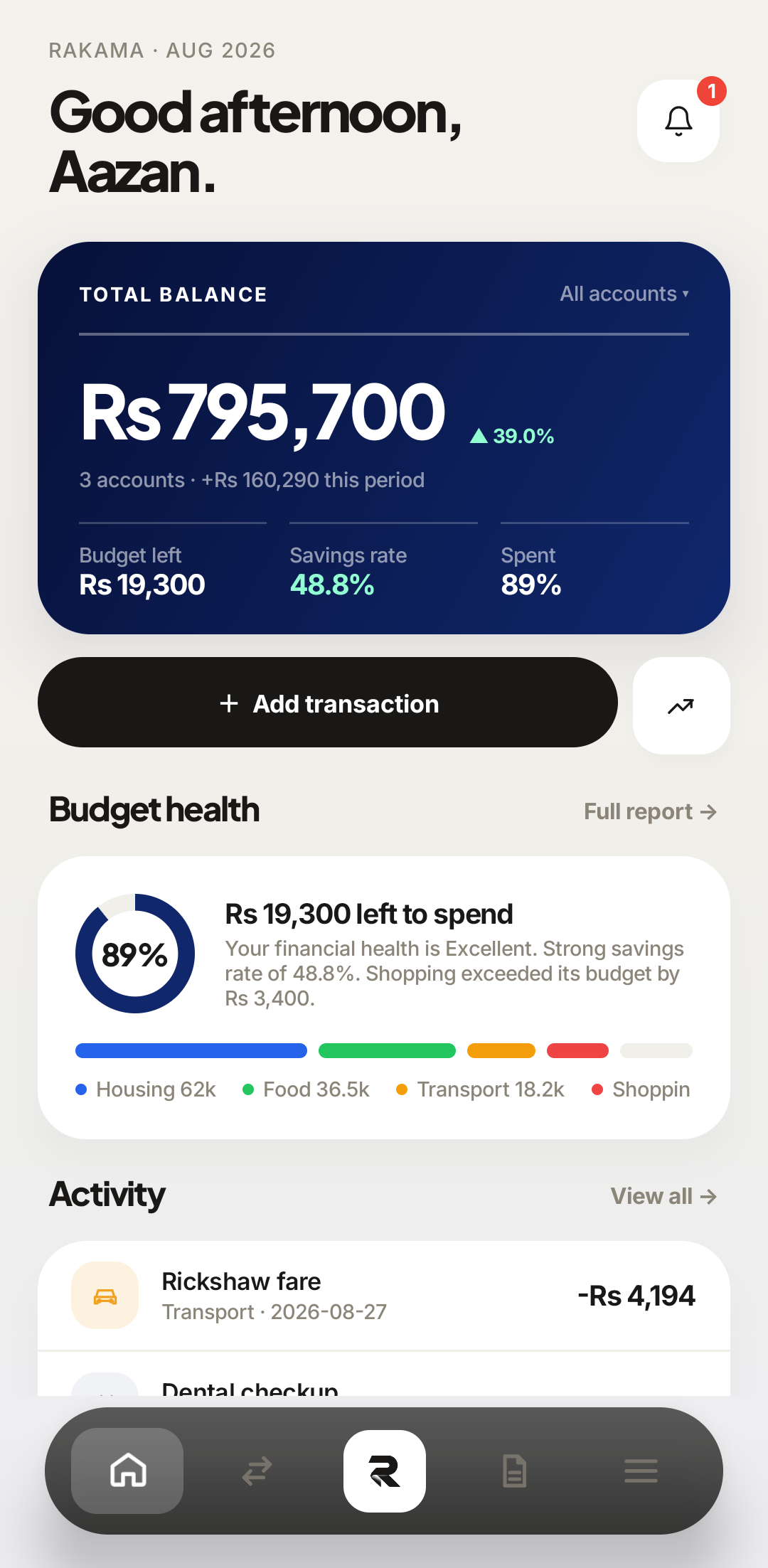
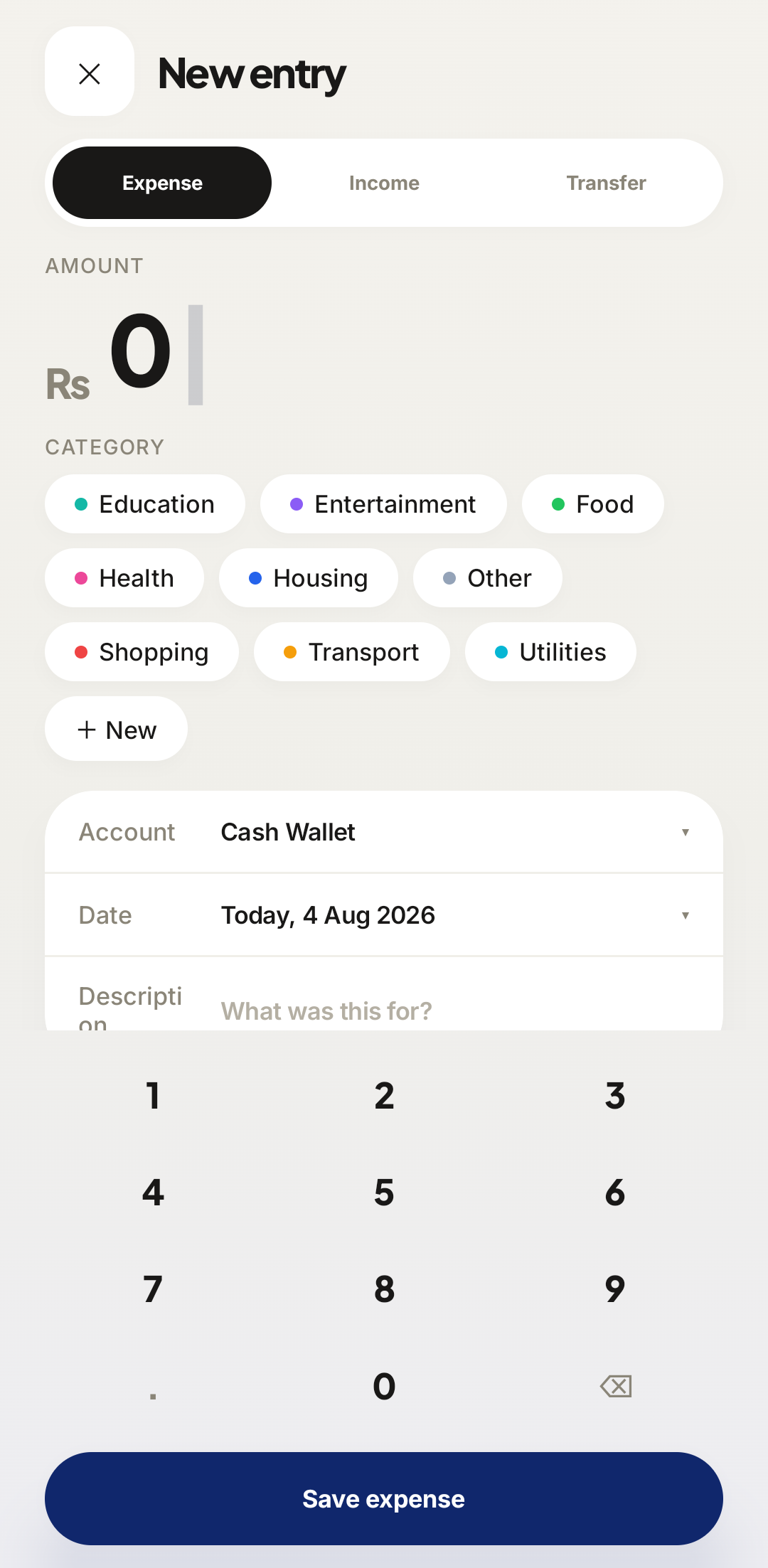
From the home screen, tap the black Add transaction pill directly under your balance card. The New entry sheet slides up from the bottom.
The R tile in the middle of the bottom navigation bar does the same thing from any screen — use that one when you are already deep in budgets or reports.
Click Transactions in the left sidebar — the two-arrow icon, second from the top — then the black Add transaction button in the top-right corner. The form opens as a dialog over the page.
 1Add transaction2
The Add transaction pill sits directly under the balance card; the R tile in the nav bar opens the same sheet from anywhere. 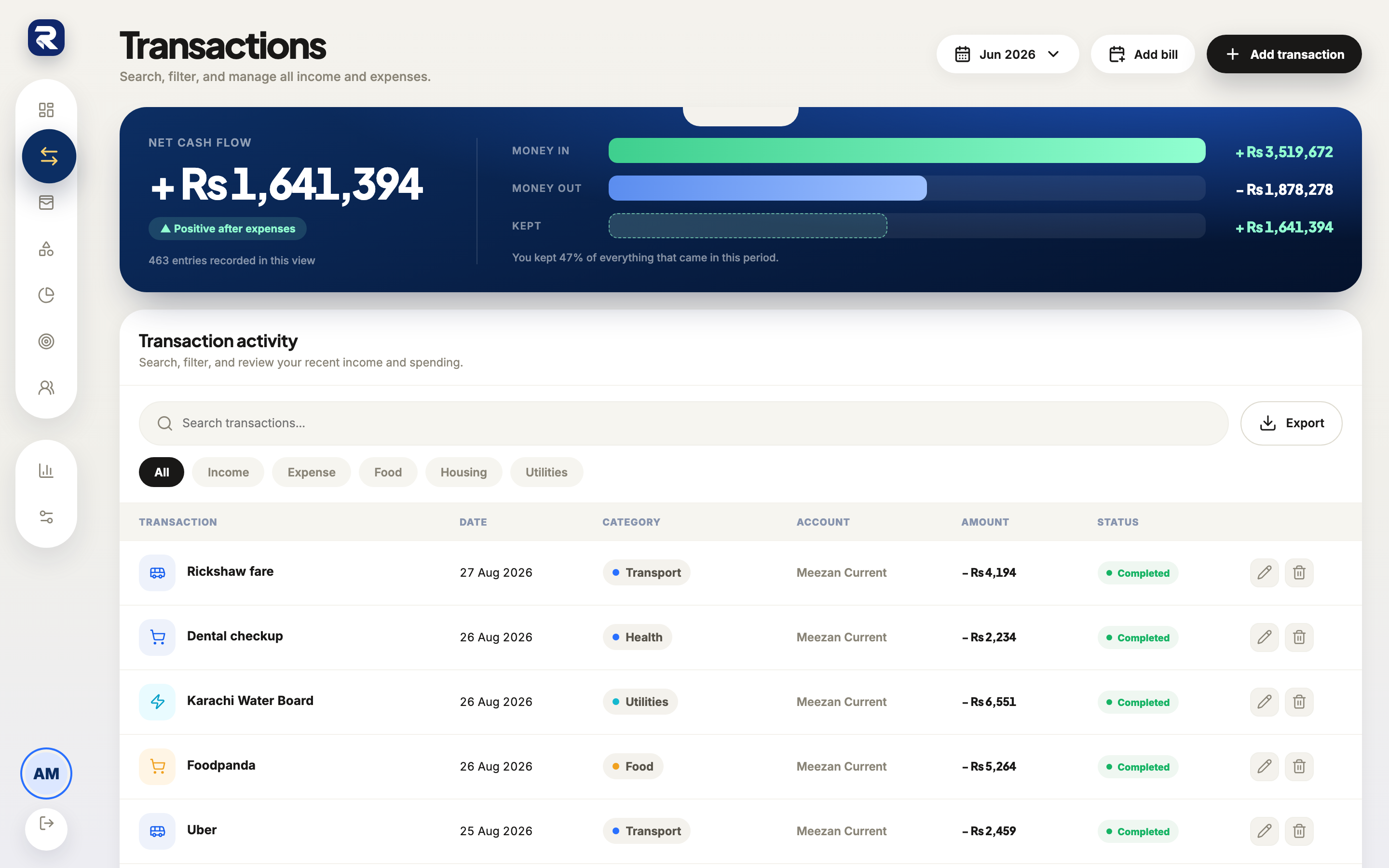 12Add transaction
Transactions in the sidebar, then Add transaction in the top-right corner. Choose expense, income, or transfer
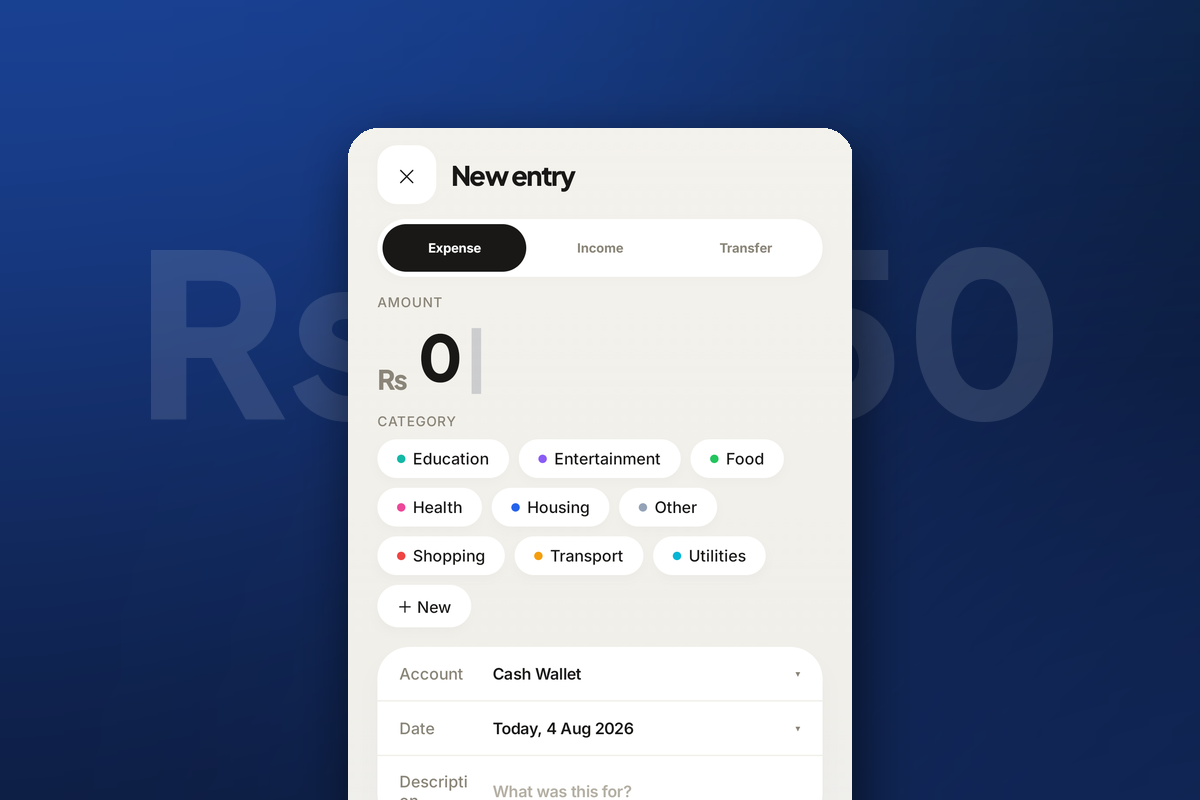
This is the one choice that changes what the transaction means. Expense is money leaving you, Income is money arriving, and Transfer is money moving between two accounts you already own. Expense is selected by default, which is right most of the time.
The three sit in a segmented control under the New entry title. Tap one.
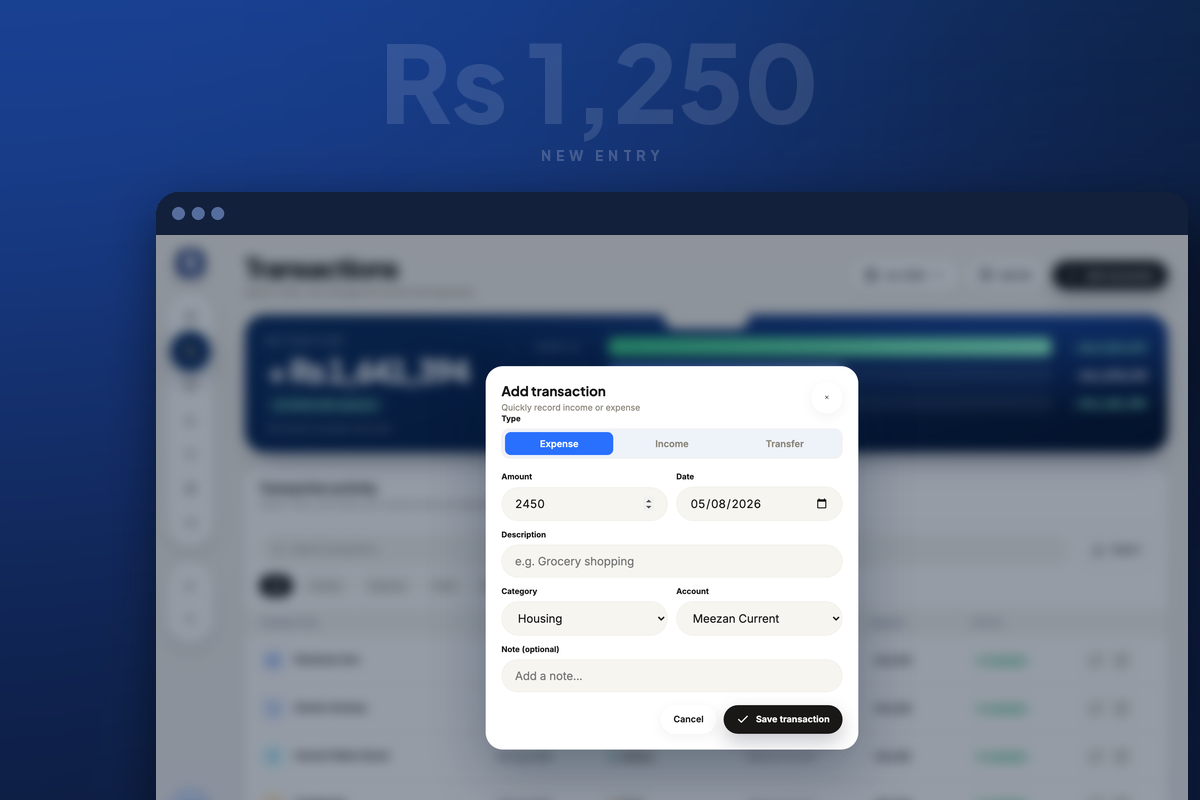
They are the three tabs under the Type label at the top of the dialog.
 Type
TypeExpense is preselected. Transfer changes the form: it asks for two accounts instead of a category. 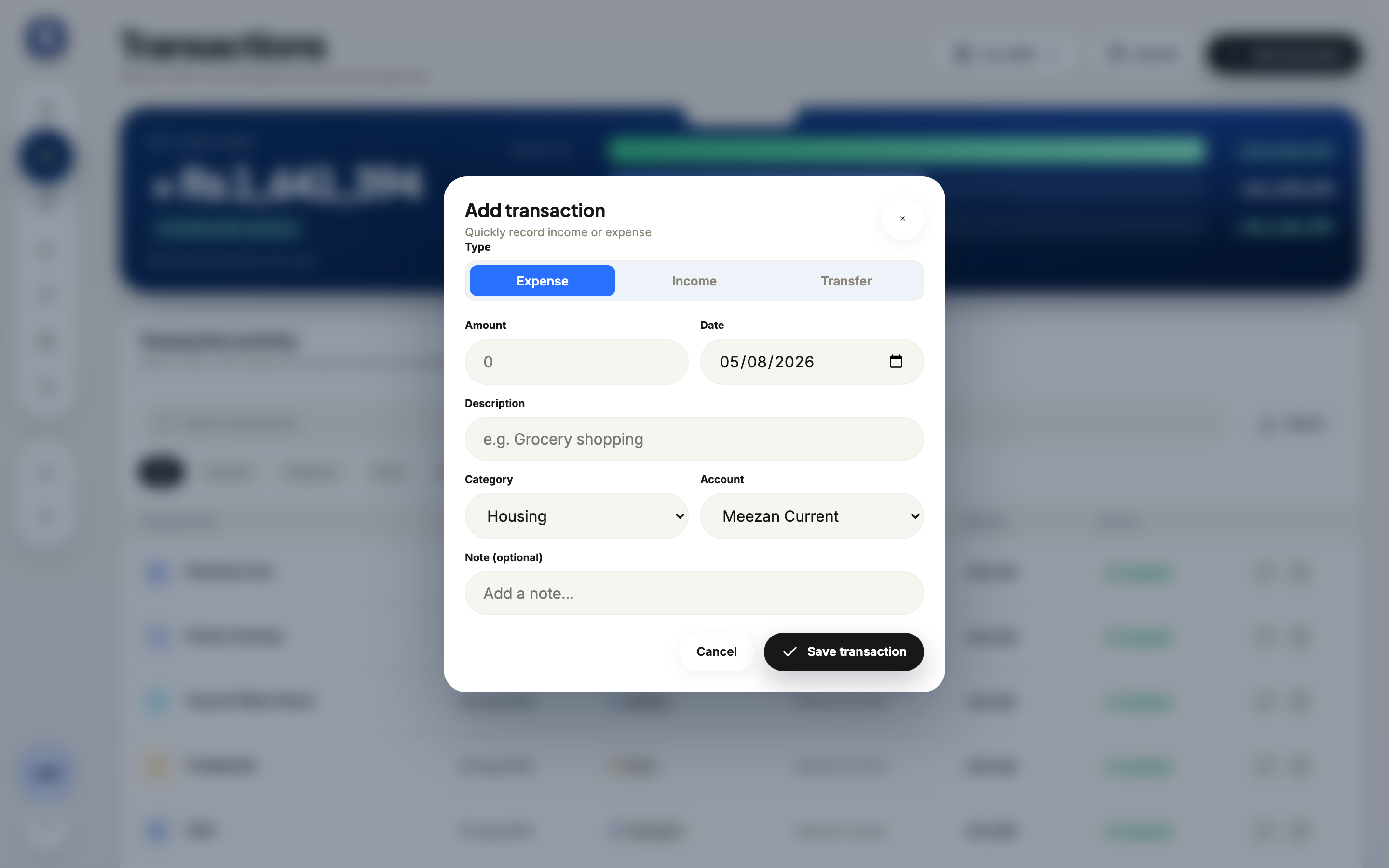 Type
TypeExpense is preselected. Transfer changes the form: it asks for two accounts instead of a category. Type the amount
Enter the figure only — no currency symbol, no minus sign. Rakama already knows this is money going out because you picked Expense, so 2450 becomes −Rs 2,450 on its own. Decimals are allowed but rarely worth it.
The keypad is part of the sheet rather than the system keyboard, so the digits stay large and the form behind them stays visible.
12The amount reads out at the top as you type; the keypad is built into the sheet. 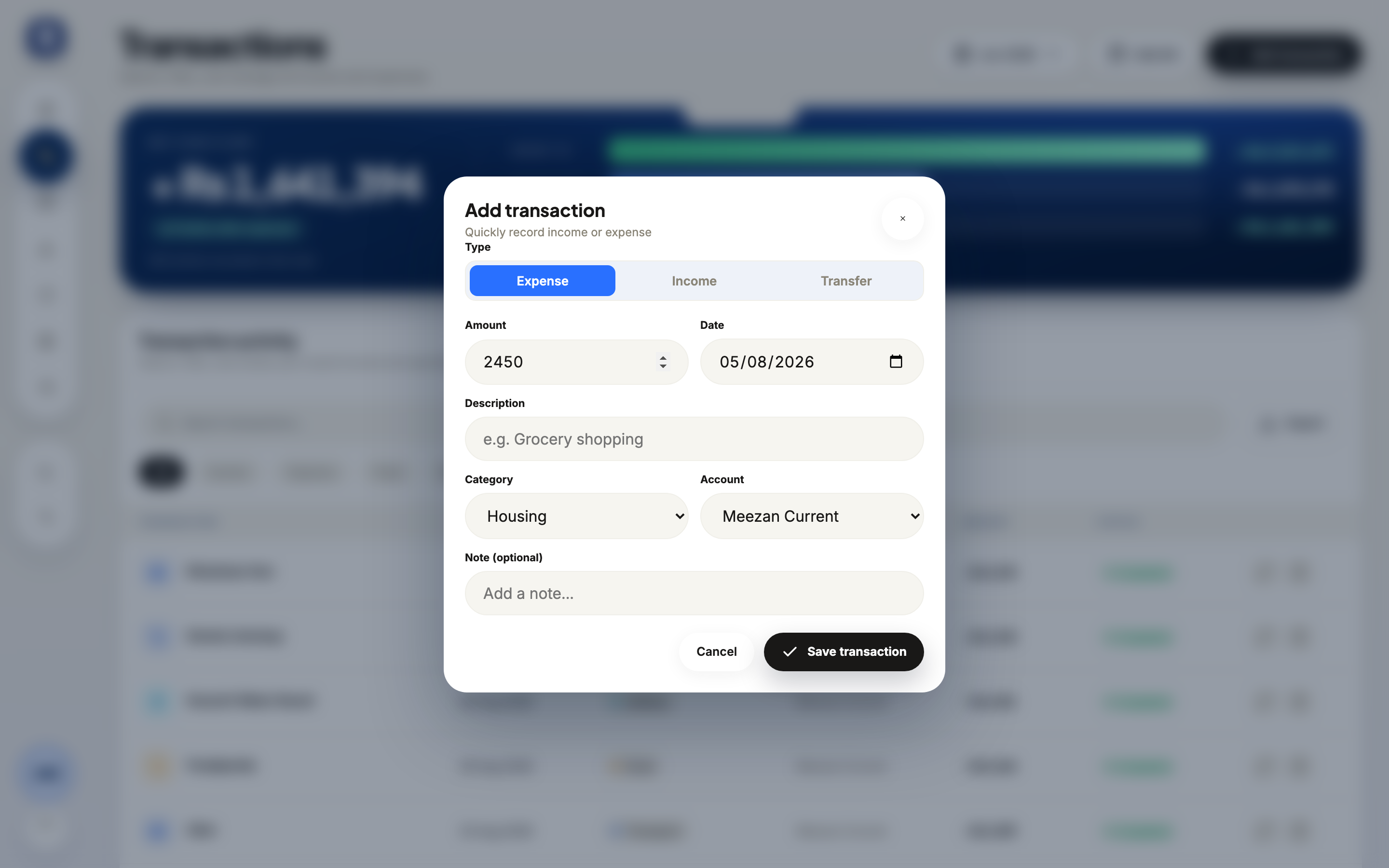 Amount
Figures only — Rakama applies the sign from the type you chose. Pick the category the money went to
The category is what turns a list of amounts into a report. It decides which budget the transaction draws down and which slice it lands in on your dashboard, so guessing here is the single most common reason a breakdown looks wrong later.
Categories are chips — tap one. If nothing fits, + New at the end of the list creates a category without leaving the sheet.
Pick from the Category dropdown. To add one that is not in the list, close the dialog and use Categories in the sidebar first.
CategoryYour own categories, plus a + New chip that creates one inline. CategoryThe category decides which budget this draws down. Set the account it came from and the date it happened
The account is which of your balances should fall — Cash Wallet, a bank current account, a card. Get this wrong and your category totals stay correct while your account balances drift.
The date defaults to today. Change it if you are catching up on a receipt from last week: Rakama files the transaction into that month’s budget and reports, not the current one.
1Account2DateBoth are dropdowns. Account defaults to the one you used last; date defaults to today. 1Account2DateAccount sits beside Category; the date field is up beside the amount. Describe it and save
A description is optional and worth the two seconds anyway: it is the only thing that makes this transaction findable by search in three months. Write what you would search for — “Foodpanda”, “Karachi Water Board” — not what you would explain.
Then tap the navy Save expense button at the bottom of the sheet.
The Note field underneath is for anything longer — who you were with, what it was for. Then click Save transaction.
1Description2Save expenseThe button names the type you picked — it reads Save income or Save transfer for the others. 1Description23Save transactionDescription is what search matches on; the note is free text for anything longer.
The form closes and the transaction appears at the top of the list, filed under today. On your dashboard, Budget left drops by the amount and the category you chose grows in the Budget health bar. If none of that moved, the transaction saved with a date in another month — open it and check.
Transfers vs expenses
Moving Rs 20,000 from your bank account to your cash wallet is not spending, and recording it as an expense is the fastest way to make a perfectly healthy month look like a disaster. Use Transfer: it asks for a source account and a destination account instead of a category, moves the balance between them, and leaves every budget and your savings rate untouched.
If something looks wrong
Edit the original transaction rather than adding a second one to cancel it out. Two entries that net to the right number still put two rows in your reports and both count toward the category they were filed under.
Open Transactions from the nav bar, find the entry, and swipe it left to reveal edit and delete. Rakama asks before deleting rather than removing it outright.
Open Transactions, find the row, and use the pencil icon at the right edge to edit or the bin icon to delete.
1Search2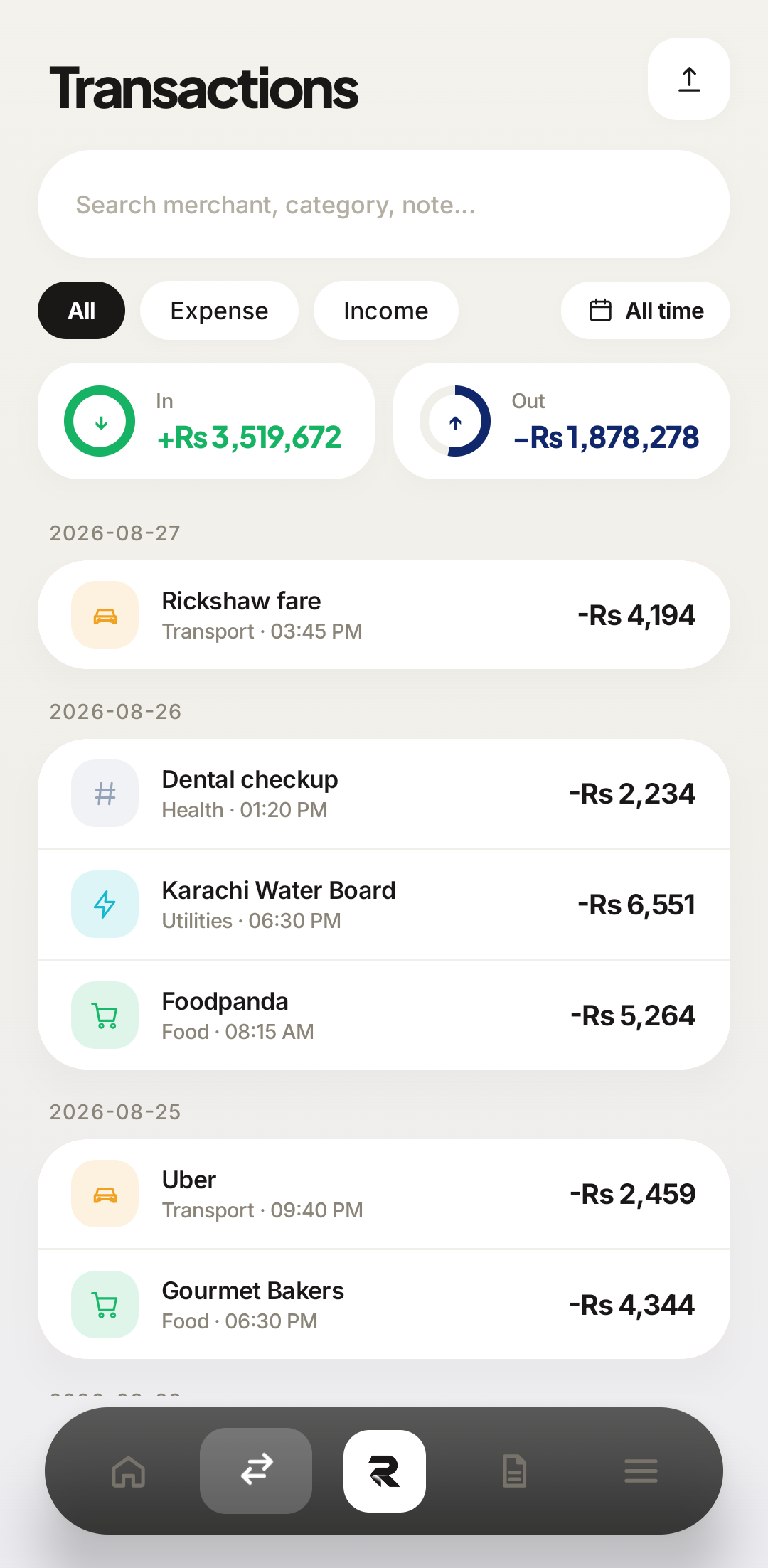
Frequently asked questions
Should I add cash purchases?
Yes. Cash is still spending, and recording it keeps your reports accurate. Set the account to Cash Wallet so the balance on that account falls too.
What is the difference between an expense and a transfer?
An expense leaves your money entirely. A transfer moves money between two accounts you own, so Rakama does not count it as spending and it will not use up any budget.
Do I have to fill in the description?
No — amount, category, account, and date are all Rakama needs. The description is what makes a transaction findable by search three months later, so it is worth the two seconds.
Can I add a transaction with a date in the past?
Yes. Change the date field to the day it actually happened. Rakama files it into that month’s budget and reports, not the current one.
Make your money easier to understand.
Track expenses, plan budgets, and keep your goals in one clear view with Rakama.
Try Rakama free ↗