Your data should never be trapped in an app, and getting a spreadsheet into one should not mean retyping a year of it. Rakama does both directions — but the order matters, so this covers export first.
Export your data
Open Settings
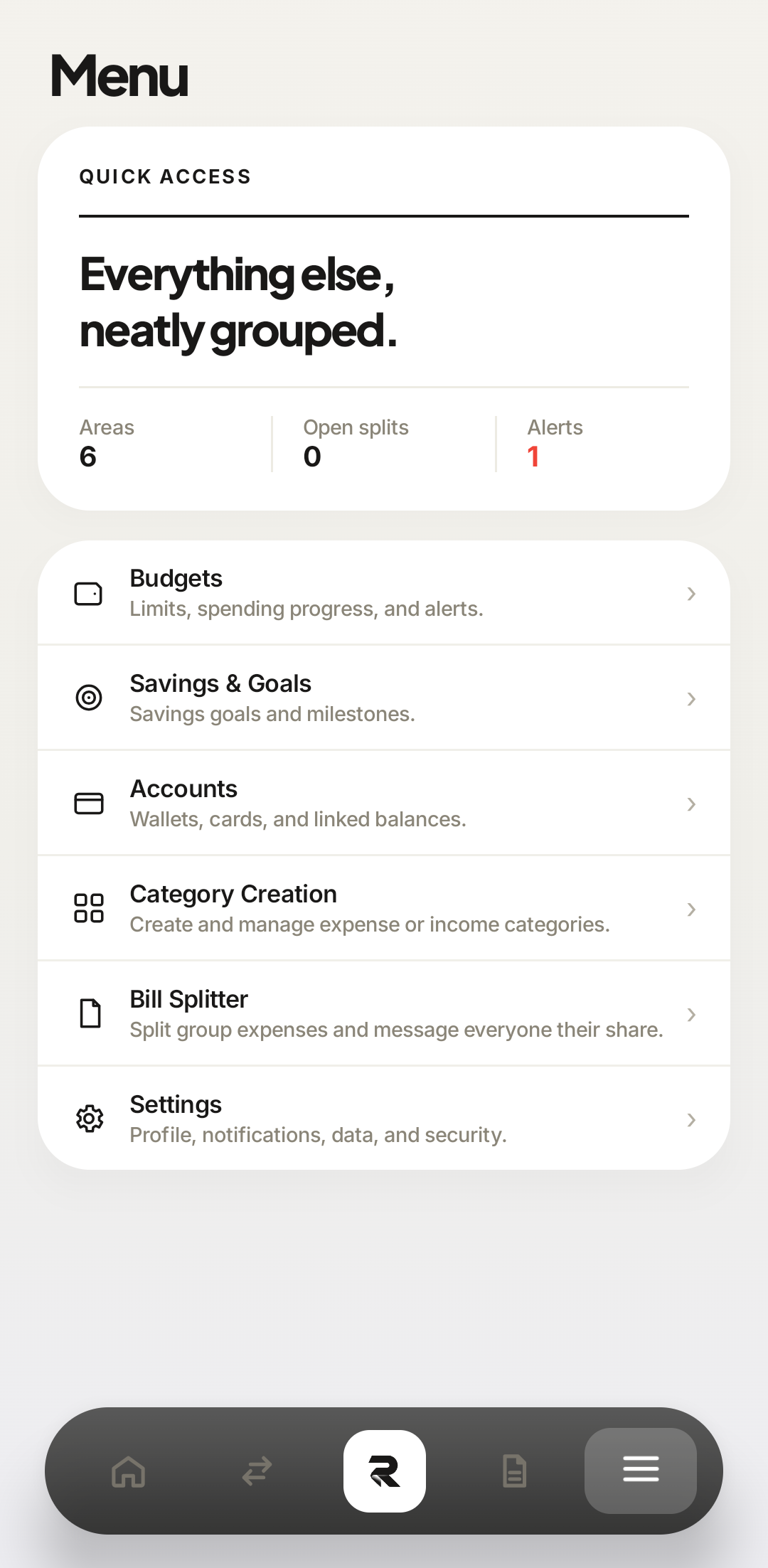
Tap the ☰ tile at the right end of the bottom navigation bar, then Settings — the last row in the menu.
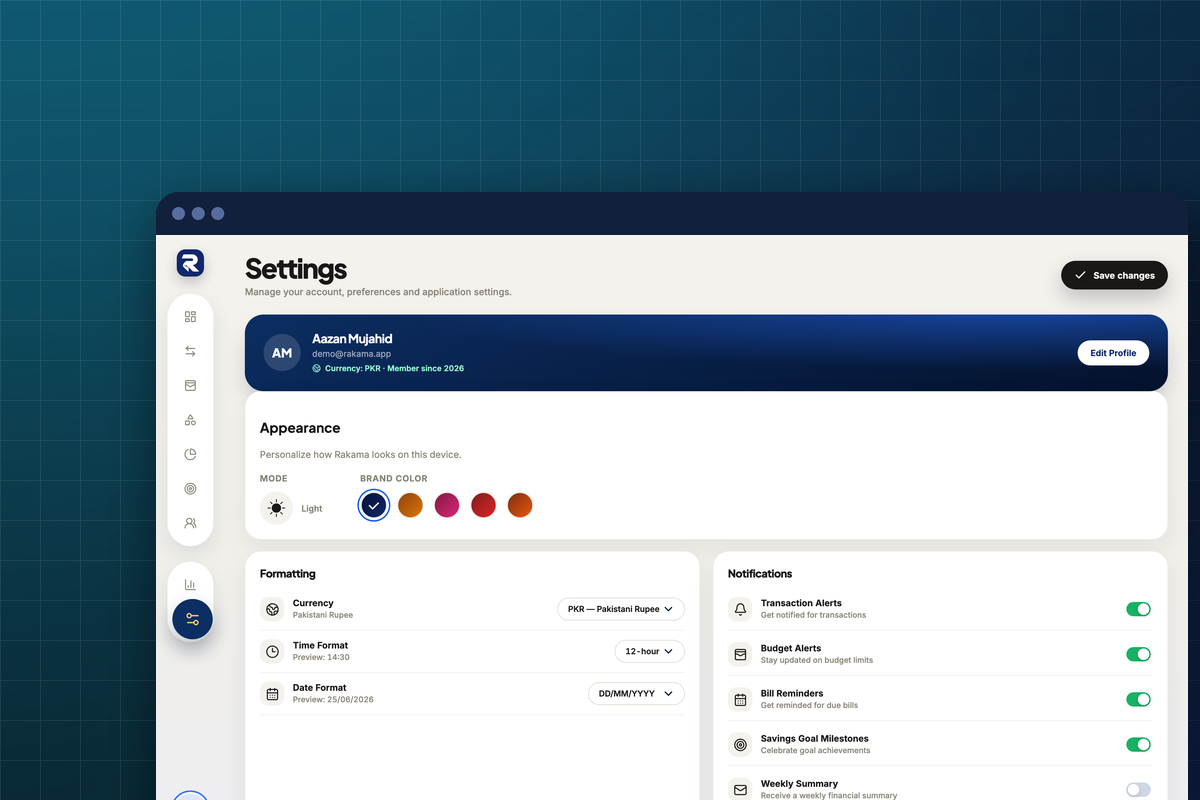
Click the sliders icon at the bottom of the left sidebar, under the reports bar chart.
 Settings
Settings is the last row — “Profile, notifications, data, and security”. 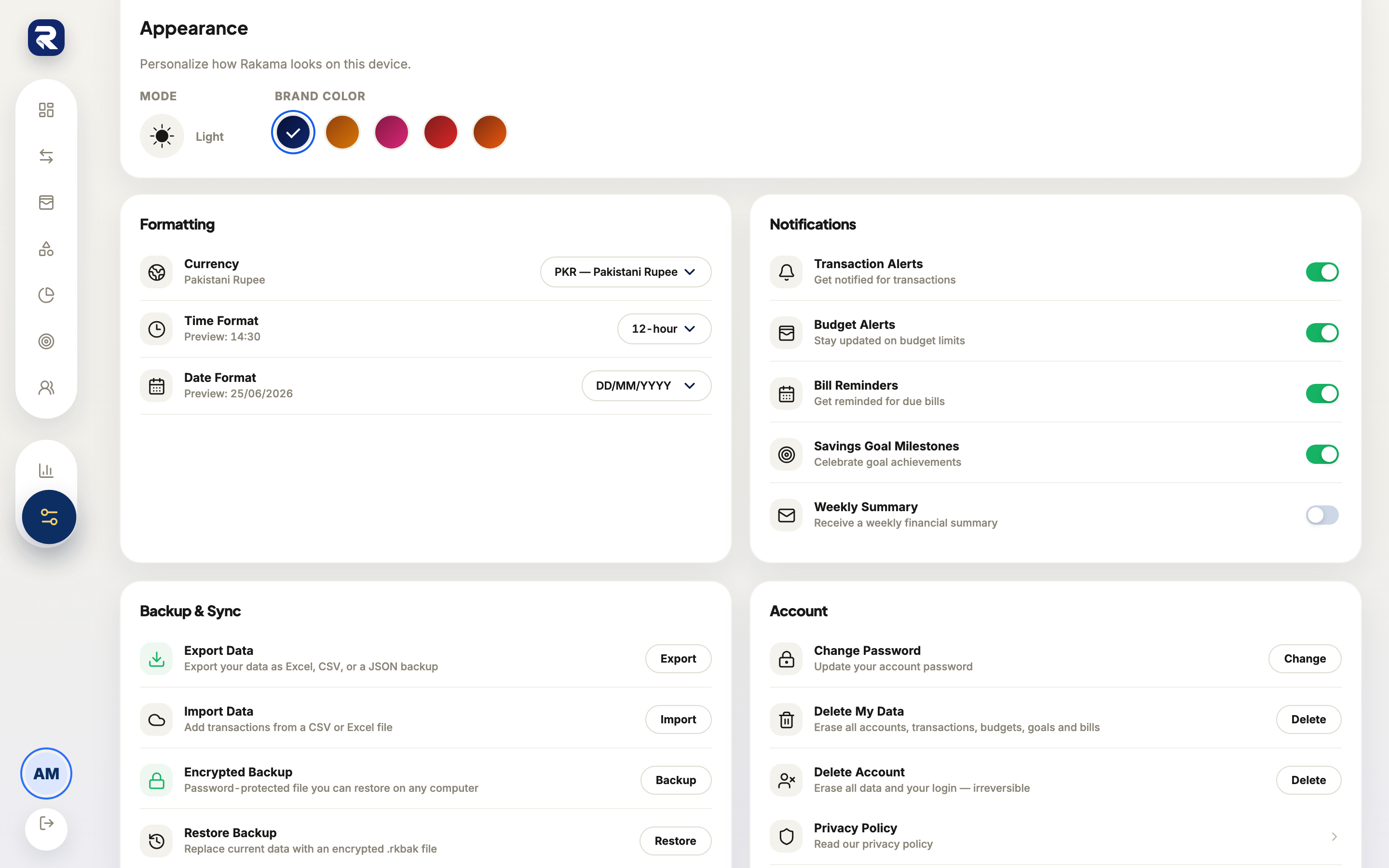 Settings
The sliders icon sits apart from the rest of the sidebar, below the divider. Find the data controls
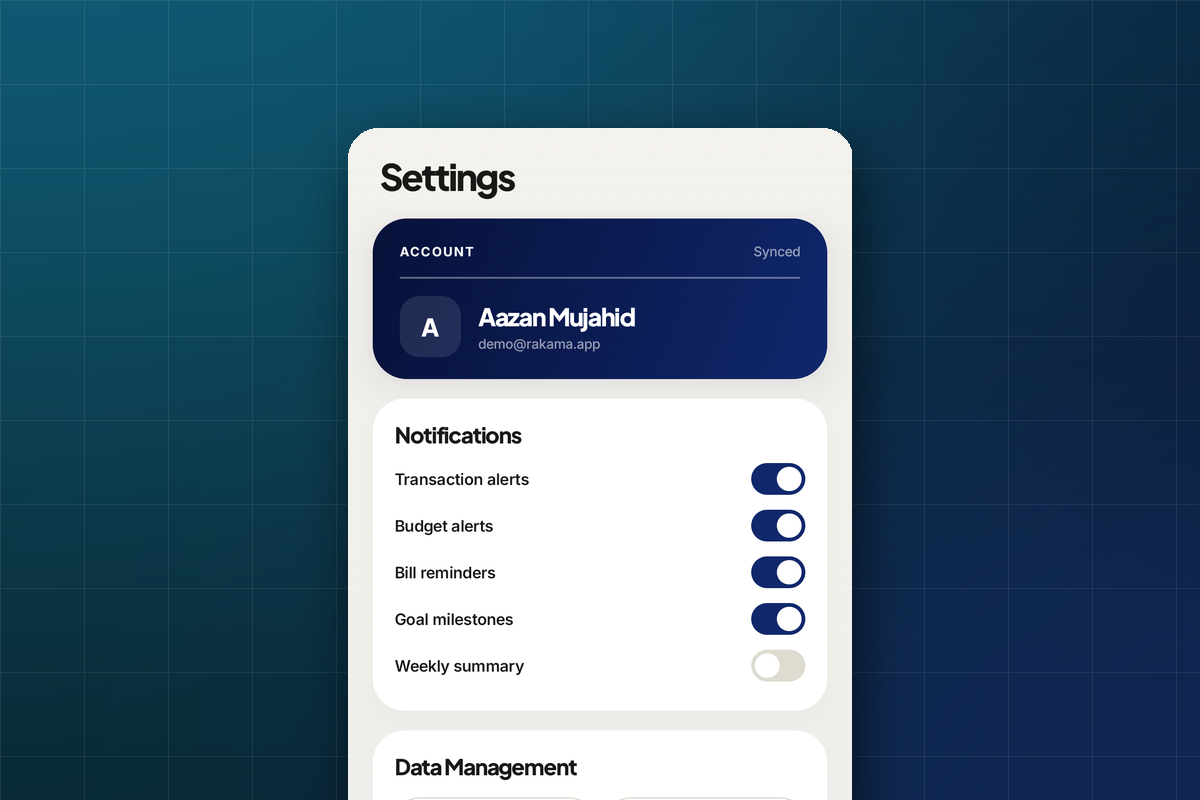
Scroll to Data Management, below Notifications. Three buttons: Export CSV, Export JSON, and Import from CSV….
Open Data & backup from the settings index. Four rows: Export data and Import data under Move data, Encrypted backup and Restore backup under Backups.
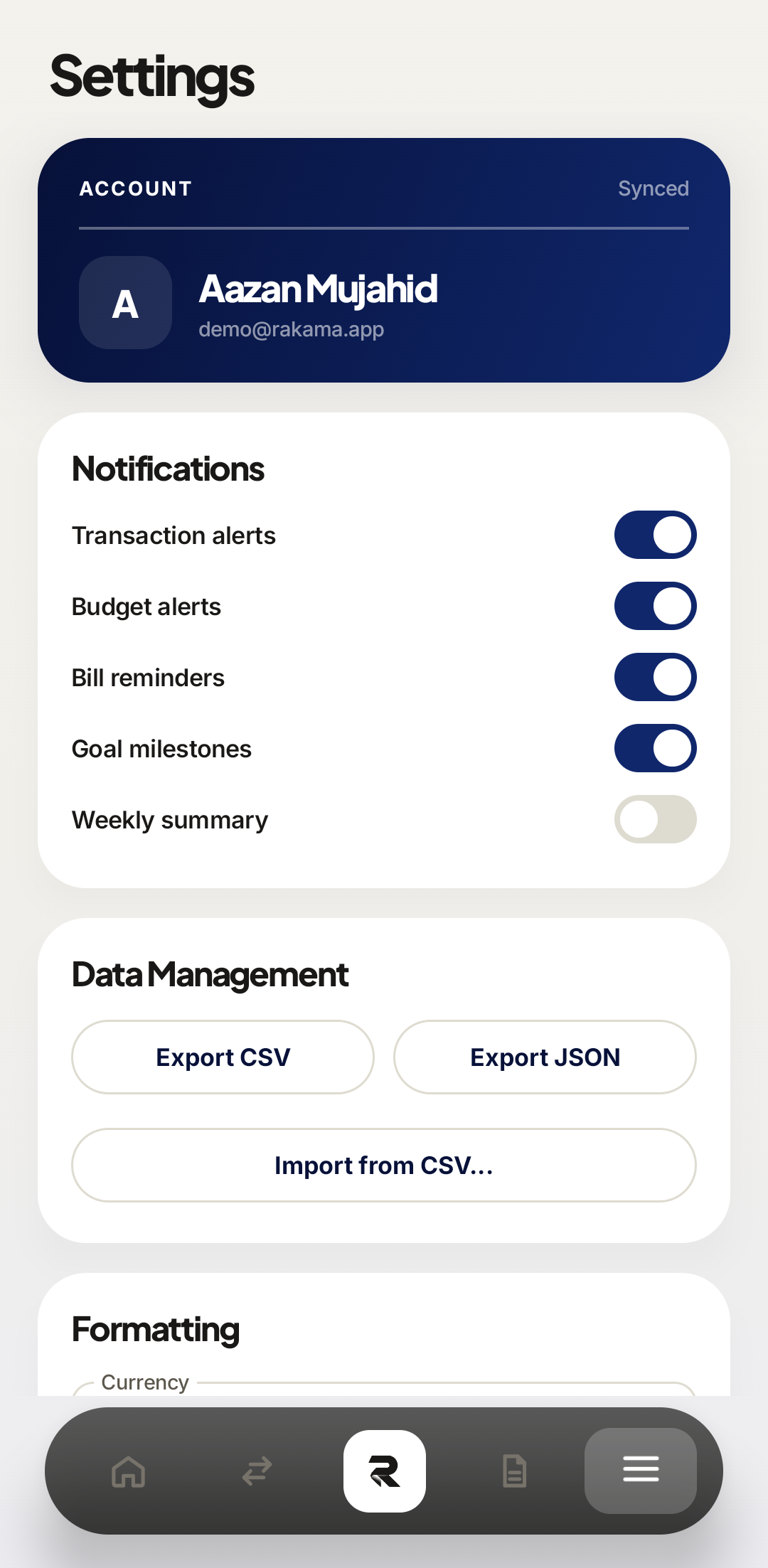 1Export CSV2Export JSON3Import
Two export formats and one import, all in one card. 123Export and Import under Move data; Backup and Restore under Backups — the pairs are deliberately not interchangeable. Export a copy before you change anything
Do this now, before the import section, and do it every time before a bulk change. Undoing a bad import one transaction at a time is the slowest job in personal finance, and a file you exported two minutes earlier turns it into a five-second job.
CSV for opening in a spreadsheet. JSON when you want the whole dataset — budgets, goals and accounts included — rather than just rows of transactions.
ExportCSV is transactions only. JSON is everything. Export dataThe row's own description tells you what you get: Excel, CSV, or a JSON backup.
The file lands in your downloads. Open it before you trust it: a CSV should have a header row and one line per transaction, and the row count should be in the region of what your Transactions screen shows. A file of 0 KB, or one with a header and nothing under it, means the export ran against an empty filter — not that you have no data.
Import transactions
Rakama reads the header row of a CSV or Excel file, guesses which column is which, and shows you a preview. Nothing is written until you confirm.
Start the import and choose your file
Tap Import from CSV… in the Data Management card, then pick the file.
Click Import on the Import Data row — described as “Add transactions from a CSV or Excel file” — then pick the file.
Get the spreadsheet down to four columns first if you can: date, description, amount, category. Rakama copes with more, but every extra column is another chance for the mapping to guess wrong.
Import dataImport adds to what is already there. It does not replace it, and it does not check for duplicates. Import from CSVThe phone accepts CSV. For Excel files, use the web app. Check the preview before confirming
Three things to look at, in this order, because each one hides the next:
- Dates. If they read as the 1st of every month, or the year is 2001, the date format was misread — fix it in the spreadsheet and re-import.
- Amounts. Expenses should be negative and income positive. A column where everything is positive will land as income and wreck your savings rate.
- Categories. Names that do not match an existing category do not create one; those rows land in Other and are tedious to sort out afterwards.
Confirm only when all three look right. This is the last point at which it is free.
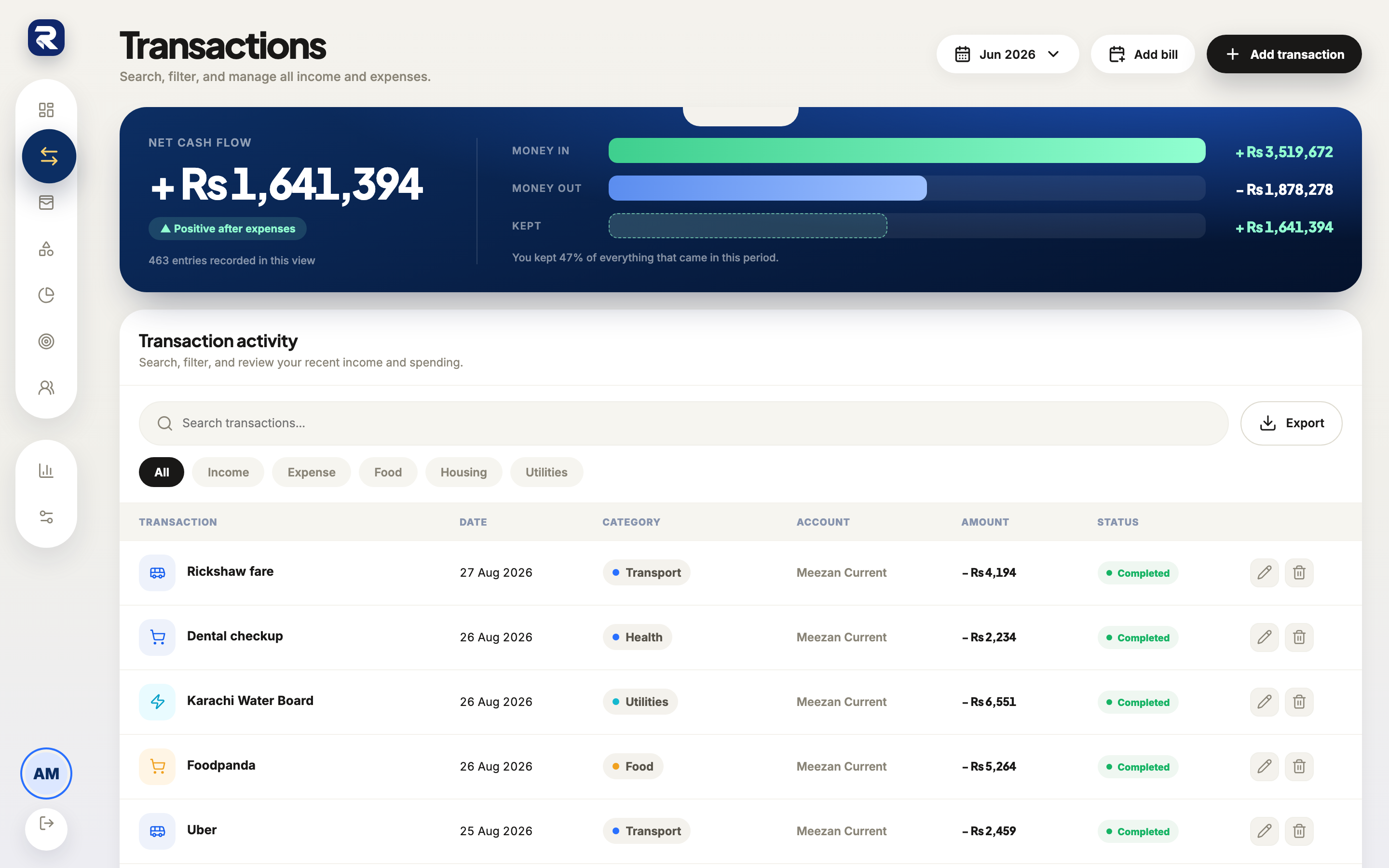 Imported rows
What you are aiming at: dates in one format, expenses negative, categories that already exist. 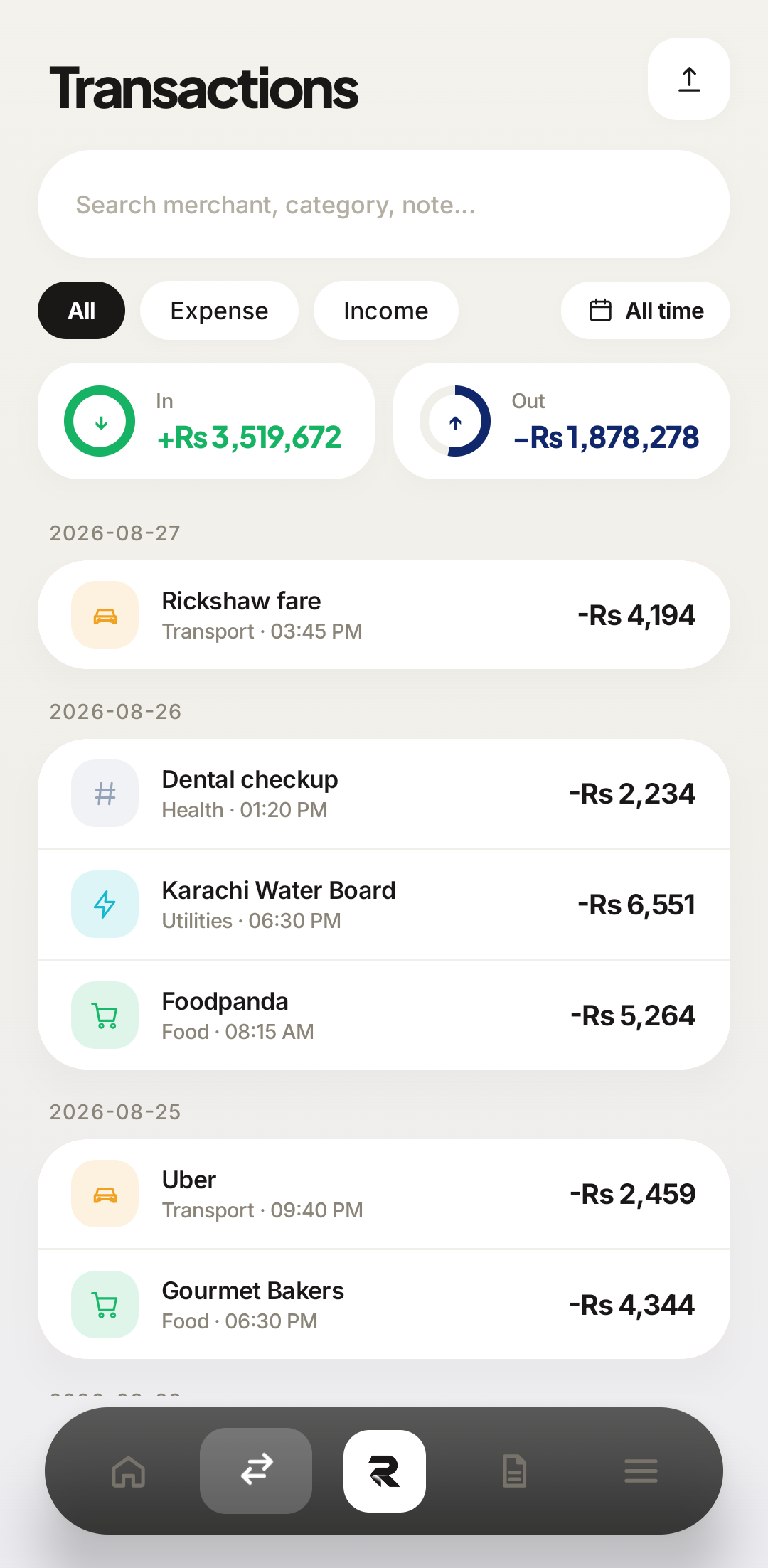 Check both ends
After importing, sort by date and check the oldest and newest rows — that is where format errors surface.
Your transaction count rises by the number of rows in the file — not more. If it rose by double, the import ran twice. Check the oldest imported date and the newest: those are the two rows where a misread date format shows up as something absurd, and everything between them will be wrong in the same way.
Backup is not the same as export
They sit next to each other and do different jobs. Export produces something a human reads — a CSV you can open, a JSON file you can inspect. Encrypted Backup produces a password-protected .rkbak file that only Rakama reads, and Restore Backup replaces your current data with it.
Use export when you want your numbers somewhere else. Use backup when you want a way back to exactly this state — before an import, before a big cleanup, before switching devices.
12RestoreWhere the file should live
Not only on the device that has Rakama on it. A backup that dies with the phone is not a backup — put it somewhere synced, and remember the password, because a password-protected file with a forgotten password is indistinguishable from no file.
Common problems
- Unsupported date formats — DD/MM/YYYY read as MM/DD/YYYY is the classic, and it only looks obviously wrong for days above the 12th.
- Currency symbols inside amount cells — "Rs 2,450" is text, not a number. Strip symbols and thousands separators before importing.
- Duplicate transactions — importing the same file twice adds it twice. Rakama does not check.
- Categories that do not exist yet — create them first, or the rows land in Other.
- Blank rows and totals at the bottom of a spreadsheet — a SUM row imports as a transaction.
Frequently asked questions
What file formats can I import?
CSV and Excel files. Rakama reads the header row, suggests a column mapping, and shows a preview before anything is saved.
Will importing create duplicate transactions?
It can, if the same rows are imported twice — Rakama does not deduplicate against what you already have. Export a backup first and check the preview before confirming.
What is the difference between Export and Backup?
Export produces a readable file — CSV or Excel you can open in a spreadsheet, or JSON. Encrypted Backup produces a password-protected .rkbak file meant for restoring into Rakama, not for reading.
Does exporting include my budgets and goals?
A JSON export or an encrypted backup covers your whole dataset. A CSV export is transactions only — it is a spreadsheet format, and budgets do not fit in rows of transactions.
Can I import from another budgeting app?
If it can export CSV or Excel, yes. Get it down to columns for date, description, amount, and category before importing, and check the date format — that is what breaks these files most often.
Make your money easier to understand.
Track expenses, plan budgets, and keep your goals in one clear view with Rakama.
Try Rakama free ↗